Class Packs
Class packs let you sell bundles of class credits at a discounted rate. Guests purchase a pack upfront and then redeem credits when booking individual classes. This encourages repeat visits and gives your guests a better per-class price.
To manage class packs, go to Dashboard > Settings > Class Packs.
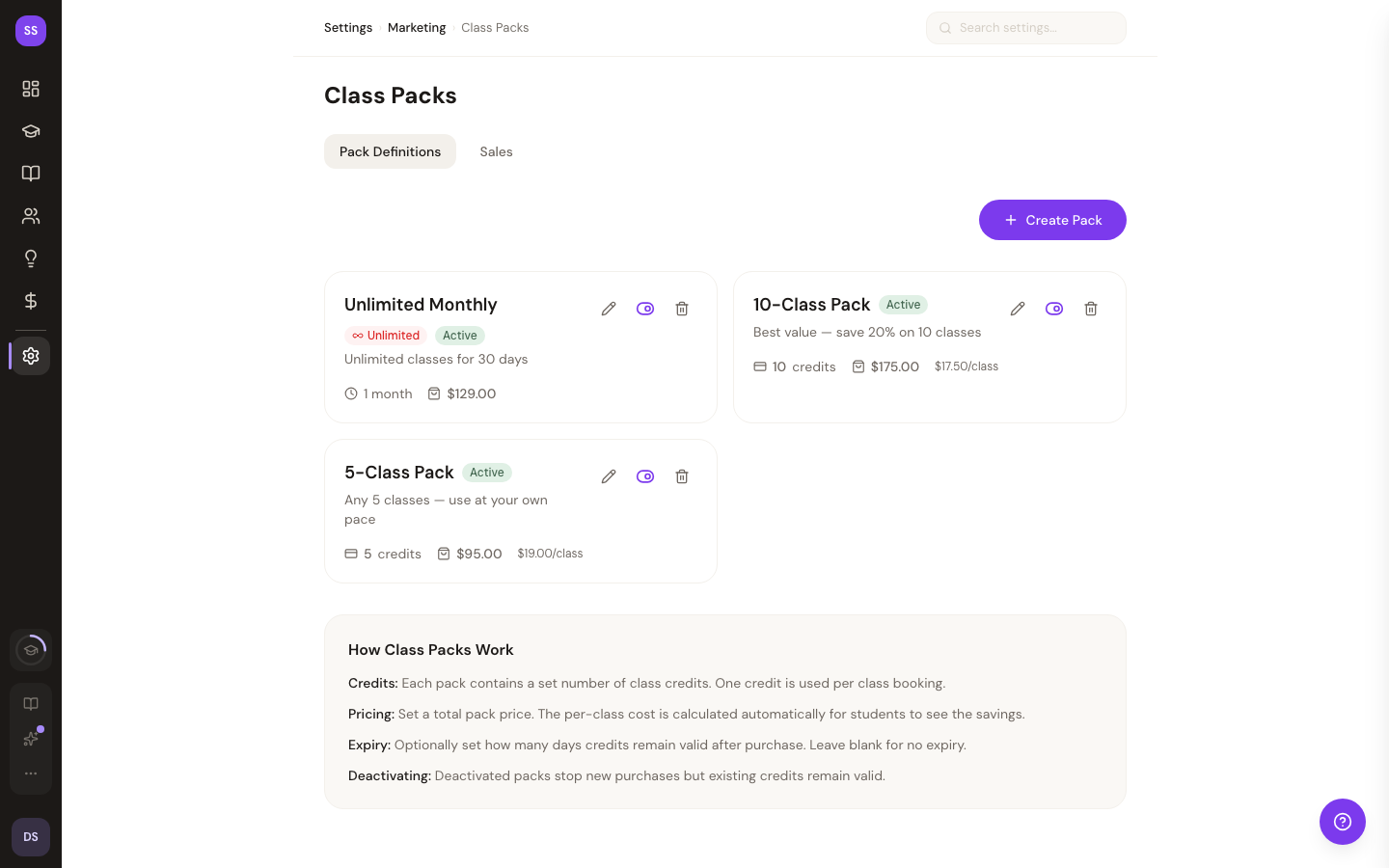
Creating a Class Pack
Click Create Class Pack to open the creation form.
| Setting | Required | Details |
|---|---|---|
| Name | Yes | A descriptive label for the pack (e.g., "10-Class Bundle", "Intro Starter Pack"). This is visible to guests. |
| Description | No | A short description explaining what the pack includes or who it is for. Shown on the public purchase page. |
| Number of Credits | Yes | How many class credits the pack includes (e.g., 5, 10, 20). |
| Price | Yes | The total price for the pack. Set this below the cost of booking each class individually to offer a savings incentive. |
| Expiration (Days) | No | Number of days after purchase before unused credits expire. Leave blank for credits that never expire. |
| Class Restriction | No | Optionally limit which classes the credits can be used for. Leave blank to allow credits for any class. |
Click Create Class Pack to save. The pack becomes available for purchase immediately.
How Guests Discover Class Packs
When your studio has active class packs, a Class Packs Banner appears at the top of your public booking page, between the studio header and the date selector. The banner shows a compact summary — "Class Packs Available" with a starting per-class price — and expands inline to reveal the full list of available packs. Guests can tap a pack to purchase it through Stripe checkout without leaving the booking page.
Guests who are signed in can also view their purchased packs and remaining credits from the Account Drawer, accessible via the account icon in the booking page header.
How Guests Use Credits
When a guest who owns pack credits books a class, the booking sheet shows available credits as a payment option.
- Always-visible credits -- The payment section in the booking sheet displays available pack credits alongside the standard payment option. Guests choose which to use.
- Sign-in prompt -- Guests who are not signed in see a prompt to sign in to check for available credits.
- Credit balance -- Guests can see how many credits they have remaining, both in the booking sheet and in the Account Drawer.
- Class restrictions -- If a pack is restricted to specific classes, the credit option only appears for those classes.
- Expiration -- If credits have an expiration date, expired credits are not available at checkout.
Tracking Sales
Go to Dashboard > Settings > Class Packs and click the Sales tab to view purchase history. The sales view shows:
| Column | Details |
|---|---|
| Guest | The name and email of the purchaser |
| Pack | Which class pack was purchased |
| Credits | Number of credits purchased and how many remain |
| Purchase Date | When the pack was bought |
| Expiration | When the credits expire (if applicable) |
| Status | Active, fully redeemed, or expired |
Managing Class Packs
Editing a Pack
Click a class pack to edit its name, description, price, credits, expiration, or class restrictions. Changes apply to new purchases only. Existing purchased packs retain their original terms.
Deactivating a Pack
Deactivate a pack to remove it from the public purchase page. Guests who already purchased the pack can still use their remaining credits.
Deleting a Pack
Click the delete button to remove a pack. A confirmation dialog will appear. Deleting a pack removes it from the public page but does not revoke credits that guests have already purchased.
Important Notes
- Credits are tied to the guest's email address. If a guest uses a different email, their credits will not be available.
- Expired credits cannot be used. Once a pack's expiration date passes, any remaining credits are no longer redeemable.
- Pack credits do not stack with promotions or promo codes. When a guest uses a pack credit, the full credit is applied and no additional discounts are layered on top.
- Pricing changes do not affect existing purchases. If you change the price or number of credits in a pack, only future purchases are affected.
Tips
- Offer a starter pack for new guests. A small pack (e.g., 3 classes) at a modest discount is a low-commitment way to bring in new clients.
- Create larger packs for regulars. Guests who attend weekly will appreciate a 10- or 20-class pack with a meaningful per-class savings.
- Set reasonable expirations. An expiration of 90 or 180 days encourages guests to stay active without feeling rushed.
- Use class restrictions for specialty offerings. If you have premium or workshop-style classes, create a dedicated pack for those instead of mixing them with general credits.
Need Help?
Contact support at support@studiobase.org if you have questions about class packs.