Custom Fields
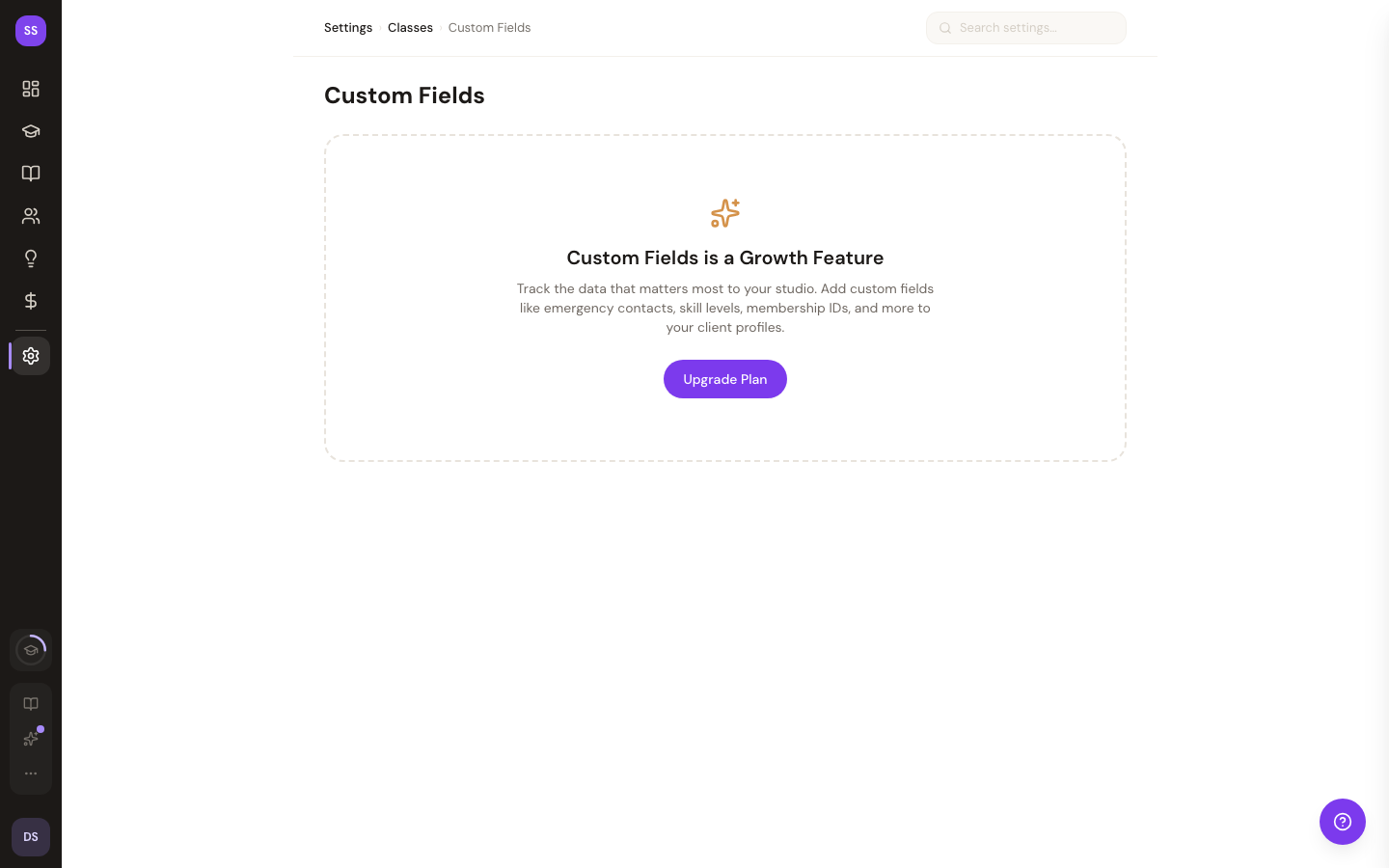
Custom Fields is a Growth plan feature. Studios on the Starter plan will need to upgrade to access this setting. Visit Settings > Subscription to view available plans.
Custom fields let you track additional information about your clients beyond the standard booking data. Define the fields once, and they appear on every client profile for you to fill in.
To manage custom fields, go to Dashboard > Settings > Custom Fields.
Field Types
StudioBase supports five field types:
| Type | Description | Example |
|---|---|---|
| Text | Free-form text input | Emergency Contact, Allergies |
| Number | Numeric input | Age, Member ID |
| Date | Date picker | Birthday, Membership Start |
| Select | Dropdown with predefined options | Fitness Level (Beginner, Intermediate, Advanced) |
| Yes / No | Boolean toggle | VIP Client, Photo Consent |
Creating a Custom Field
Click Add Field to open the creation form.
| Setting | Required | Details |
|---|---|---|
| Field Name | Yes | A descriptive label (e.g., "Emergency Contact", "Skill Level") |
| Field Type | Yes | Choose from Text, Number, Date, Select, or Yes / No |
| Options | Yes (Select only) | Comma-separated list of dropdown choices (e.g., "Beginner, Intermediate, Advanced") |
| Required | No | When checked, clients must fill in this field |
Click Add Field to save. The new field appears immediately on all client profiles.
Editing a Custom Field
Click the edit icon on any field to update its name, type, options, or required setting. Changes take effect immediately across all client profiles.
Reordering Fields
Fields are displayed in the order they were created. The display order number is shown next to each field in the list.
Deleting a Custom Field
Click the trash icon to delete a field. A confirmation dialog will appear warning that all associated client data for this field will be permanently removed. This action cannot be undone.
How Fields Appear on Client Profiles
Custom fields are displayed at the bottom of each client profile page (below Notes). Values are editable inline:
- Text and Number fields -- Click the edit button next to the value, make your change, then click save
- Date fields -- Click to open a date picker
- Select fields -- Choose from the dropdown of predefined options
- Yes / No fields -- Toggle the switch directly
If no custom fields have been configured, the client profile shows a link to Settings > Custom Fields where you can create your first field.
Tips
- Add "Emergency Contact" first. This is the most commonly needed custom field for fitness studios.
- Use Select fields for standardized data. Dropdown options keep your data consistent across clients (e.g., "Beginner" vs "beginner" vs "Beg").
- Mark safety-critical fields as required. Fields like injury history or emergency contacts should be required so they don't get skipped.
- Keep field names short and clear. They appear as labels on client profiles, so concise names work best.
Need Help?
Contact support at support@studiobase.org if you have questions about custom fields.