Embed Widget
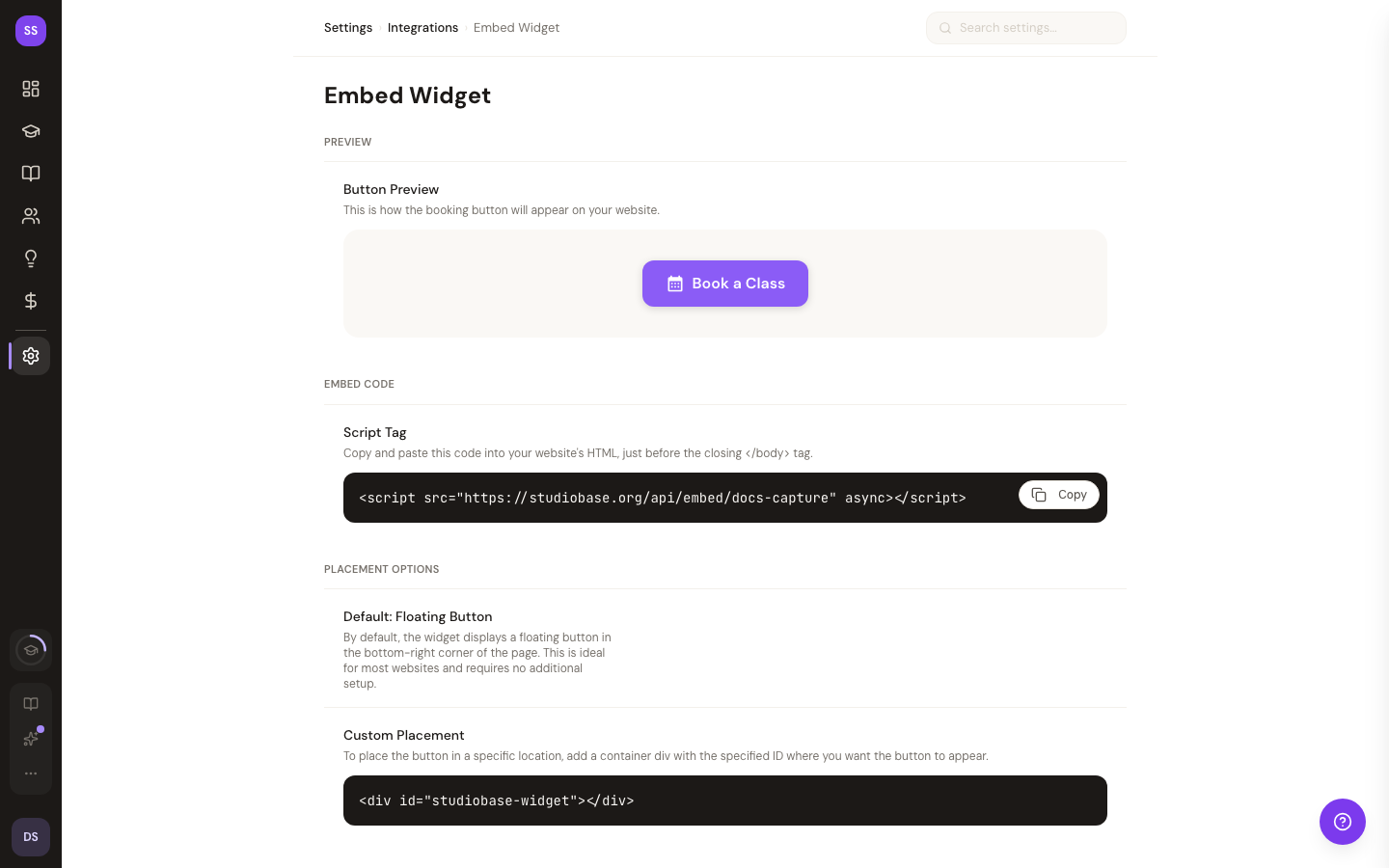
The embed widget lets you add a booking button to your existing website. When students click it, your StudioBase booking page opens — no need for them to visit a separate site.
Go to Dashboard > Settings > Embed to set it up.
How It Works
StudioBase provides an embed code (a script tag) that you paste into your website's HTML. The script adds a floating booking button in the bottom-right corner of your site, styled with your studio's brand color.
Setup
- Go to Dashboard > Settings > Embed
- Preview how the button will look on the settings page
- Click Copy Embed Code to copy the script tag
- Paste it into your website's HTML, just before the closing
</body>tag
You need a connected Stripe account before the embed widget will work for paid classes. If Stripe isn't connected, you'll see an alert on this page.
Customize the Inline Schedule
The recommended inline schedule embed (the <studiobase-schedule> element — see Embed Your Schedule) can show your own branding and content. In the Customize section of Settings > Embed you can set:
- Headline — a short line of text above the schedule (for example, "Join us this week").
- Call-to-action button — a label and a link, shown as a button beside your headline (point it anywhere — a sign-up form, a tour page, your phone number).
- Show my logo — display your studio logo (from Branding) at the top of the embed.
- Default view — whether the embed first loads as a list, a month-grid calendar, or by instructor. Visitors can still switch with the List/Calendar/By instructor toggle.
The settings page shows a live preview as you edit. These choices apply to every inline-schedule placement automatically; a webmaster can override them per placement with data-* attributes (data-view, data-header, and more) — see Embed Your Schedule for the full list.
Edits can take a few minutes to appear on already-published embeds — the public schedule is cached for speed.
Placement Options
Default (Floating Button)
The default setup adds a floating button in the bottom-right corner of every page. No additional configuration needed — just paste the embed code.
Custom Placement
If you want the booking button in a specific location, add a container div with the ID studiobase-widget where you want it to appear:
<div id="studiobase-widget"></div>
The embed script will render the button inside this container instead of floating it.
Need Help?
Contact support at support@studiobase.org if you need help embedding the booking widget on your website.