Add an Instructor
Instructors in StudioBase are informational records that represent the people who teach your classes. They do not have login accounts or dashboard access -- the studio owner manages all instructor information.
Navigate to Instructors
From your dashboard, go to Settings > Instructors. This page displays all of your instructors in a card grid layout (1 column on mobile, 2 on tablet, 3 on desktop).
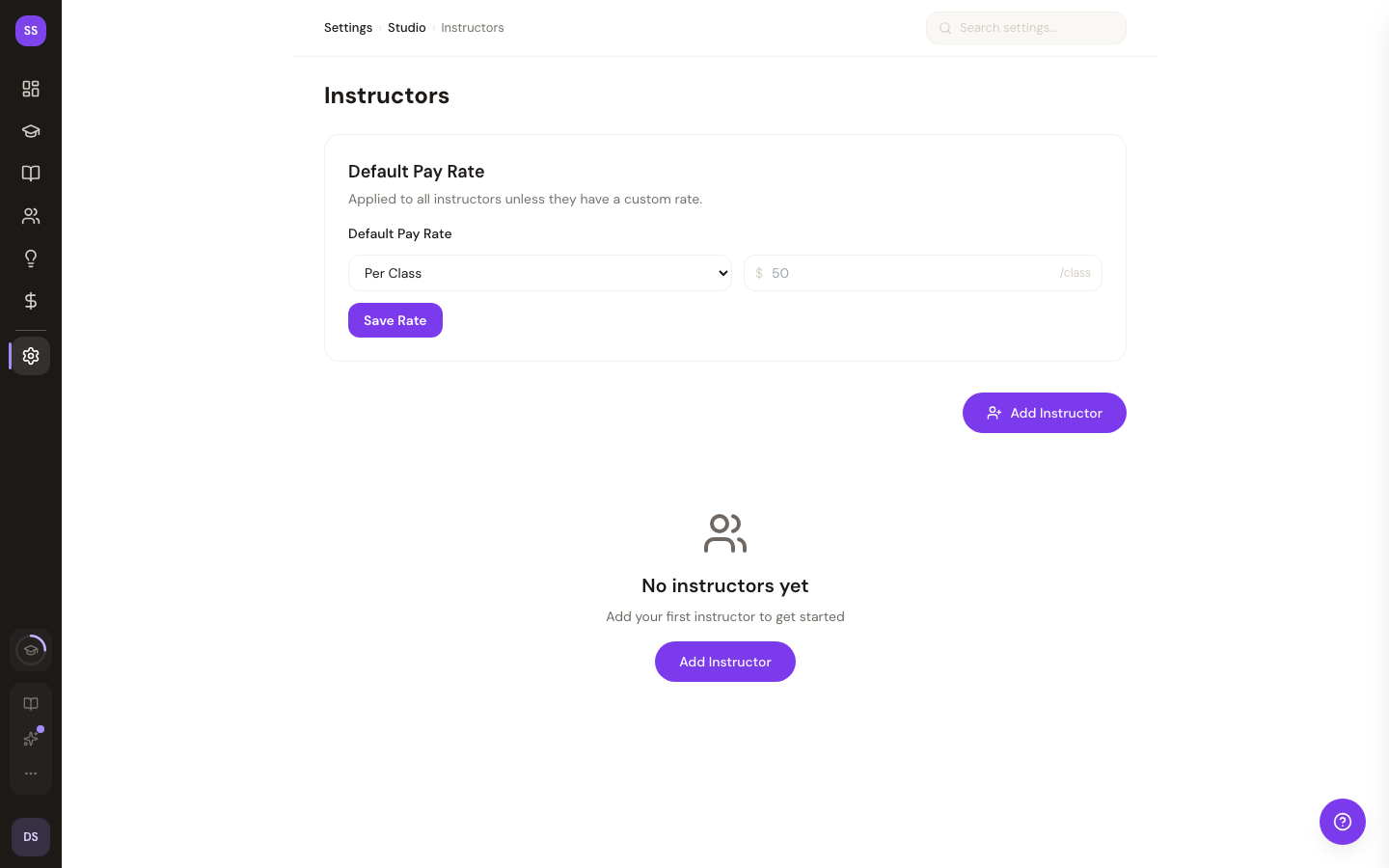
Adding an Instructor
Click the Add Instructor button to open the instructor form modal.
Required Fields
- Name -- The instructor's full name (max 100 characters).
- Email -- A contact email for administrative purposes. This is not used for login or sending invitations.
- Phone -- A contact phone number for administrative purposes.
Optional Fields
- Tagline -- A short description or credentials summary, up to 200 characters. For example: "Certified Yoga Instructor - 10+ years experience". This serves as the instructor's brief profile description.
- Instagram Handle -- Their Instagram username, up to 30 characters. Displayed with an @ prefix on the instructor card.
- TikTok Handle -- Their TikTok username, up to 24 characters. Displayed with an @ prefix on the instructor card.
- Website URL -- A personal or professional website. Must start with
http://orhttps://. - LinkedIn URL -- Their LinkedIn profile. Must be a
linkedin.comURL. - Active -- A checkbox that controls whether the instructor is visible and available for class assignment. Checked by default for new instructors.
Click Save to create the instructor. They will appear on the instructors page immediately.
Editing an Instructor
On the instructor card, click the pencil icon to open the edit modal. The same form appears pre-filled with the instructor's current information. Make your changes and click Save.
Deleting an Instructor
On the instructor card, click the trash icon. A browser confirmation dialog will ask you to confirm the deletion.
Important: You cannot delete an instructor who is assigned to upcoming classes. Reassign or cancel those classes first before removing the instructor.
Instructor Cards
Each instructor card displays:
- Name
- Tagline (if provided)
- Active or Inactive badge
- Social media links (Instagram, TikTok, LinkedIn, Website)
- Contact information (email, phone)
- Date the instructor was created
Assigning Instructors to Classes
When creating or editing a class, select the instructor from the Instructor dropdown in the class form. Only active instructors appear in this list.
Key Points
- No login accounts -- Instructors are metadata records managed entirely by the studio owner. They do not receive invitation emails, cannot log in, and do not have their own dashboard.
- No permissions system -- There are no access levels or roles for instructors. The studio owner has full control.
- Tagline, not bio -- The tagline field (200 characters) serves as the instructor's brief profile. There is no separate bio or long-form description field.
- No photo uploads -- Instructor records do not include a profile picture or avatar.
- Active/Inactive control -- Use the Active checkbox to show or hide instructors without deleting their record.
Need Help?
Contact support@studiobase.org for instructor management assistance.