Studio Location
Adding your studio's location helps clients find you. Your address appears on your studio homepage with an embedded map and a "Get Directions" button that opens Google Maps.
Setting Up Your Location
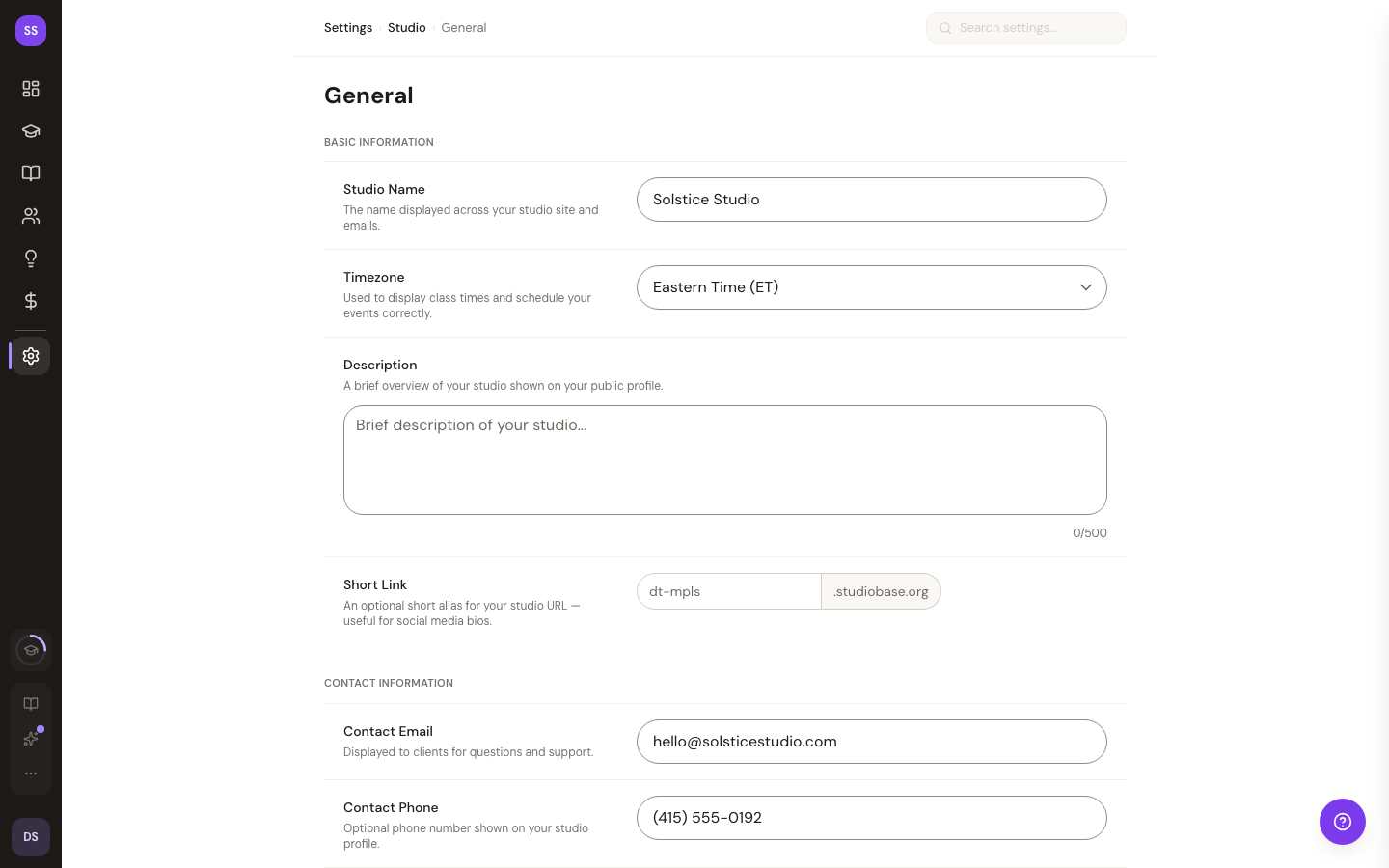
- Go to Dashboard > Settings > General
- Scroll to the Location section
- Fill in your address:
- Street Address — e.g., "123 Main Street, Suite 200"
- City — e.g., "Austin"
- State — Select from the dropdown
- ZIP Code — e.g., "78701"
- Click Save Changes
All address fields are optional — enter what you have. You'll need at least a city and state (or two address parts) for the location to display on your studio site.
Where Your Location Appears
Studio Homepage
A "Find Us" section at the bottom of your studio's public page shows:
- Your full formatted address
- An embedded Google Map centered on your location
- A "Get Directions" button that opens Google Maps with driving directions
- Your contact email and phone number (if provided)
Booking Confirmations
When clients view their bookings on the "My Bookings" page, each booking shows a compact location card with a "Get Directions" link.
Class Details
Your studio address appears in the class summary during the booking flow, so clients know where to go before they book.
Contact Information
In the same General Settings page, you can also add:
- Contact Email — Shown on your studio homepage and booking pages
- Contact Phone — Clickable phone link for mobile visitors
- Website URL — Link to your main business website (if different from your StudioBase site)
Tips
- Double-check your address — The embedded map and directions both use the address you enter, so accuracy matters
- Include a suite or unit number — If your studio is inside a larger building, add the suite number to your street address
- Add contact info — An email and phone number help clients reach you with questions about parking, access, or class details
Troubleshooting
Map doesn't appear on my studio homepage
- Make sure you've entered at least a city and state
- Save your changes and refresh your studio page
Map shows the wrong location
- Verify your street address, city, state, and ZIP are correct
- Try adding more specifics (suite number, full street name)
- Google Maps occasionally geocodes ambiguous addresses incorrectly — adding the ZIP code usually fixes this
Contact email or phone not showing
- These are separate fields in the Contact Information section of General Settings
- Make sure you've saved after entering them
Need Help?
If you have trouble setting up your location, contact us at support@studiobase.org.