Class Presets
Class presets are reusable templates that save your most common class configurations — name, duration, price, and default time. Instead of entering the same details every time you add a class to your schedule, select a preset and you're done.
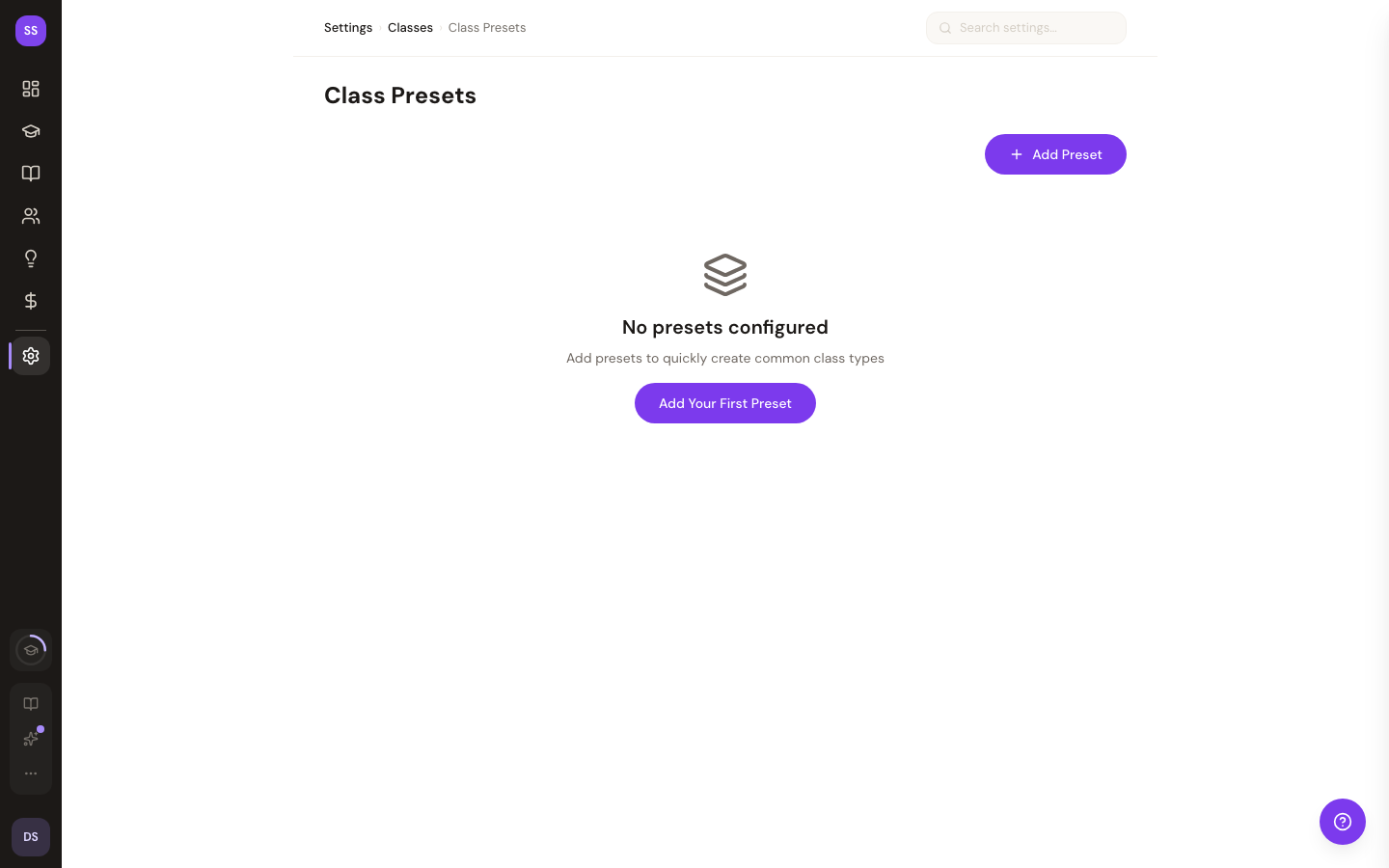
Creating a Preset
- Go to Dashboard > Settings > Class Presets
- Click Add Preset
- Fill in the template details:
- Name — The class name (e.g., "Vinyasa Flow", "HIIT 45")
- Duration — Length in minutes (5 to 480 minutes)
- Price — The class price in dollars (enter $0 for free classes)
- Default Time — The usual start time for this class
- Description — Optional notes about the class (up to 500 characters)
- Click Save Preset
Preset names must be unique within your studio. You can't create two presets with the same name.
Using Presets When Adding a Class
When you go to Add Class from your dashboard:
- Choose From Preset as your class mode
- Select a preset from the list — you'll see the name, duration, price, and default time
- Adjust the date and time if needed (the preset's default time is pre-filled)
- Click Create Class
The preset fills in the class name, duration, and price automatically. You can still adjust the scheduled time before creating.
Presets are especially useful for studios that run the same classes on a recurring basis. Set up your presets once, then add classes to your schedule in seconds.
Managing Presets
Editing a Preset
- Go to Settings > Class Presets
- Click the edit icon on the preset you want to change
- Update any fields
- Click Update Preset
Editing a preset doesn't change any existing classes that were created from it. Presets only affect new classes going forward.
Reordering Presets
Drag and drop presets to change their display order. The order you set here is the same order they'll appear when you're adding a class.
Deleting a Preset
- Click the trash icon on the preset
- Confirm the deletion
Deleting a preset has no effect on classes already on your schedule.
Tips
- Name presets clearly — Use names your instructors will recognize, like "Morning Yoga 60" or "Express HIIT 30"
- Set default times — If your Yoga Flow always runs at 9 AM, set that as the default time to save a step
- Use descriptions — Add notes like "Requires yoga mat" or "Intermediate level" to help when selecting presets
- Keep the list organized — Drag your most-used presets to the top
Need Help?
If you have questions about class presets, contact us at support@studiobase.org.