General Settings
The General Settings page is where you manage your studio's core information -- the details that appear on your public studio page and in client-facing communications.
To access it, go to Dashboard > Settings > General.
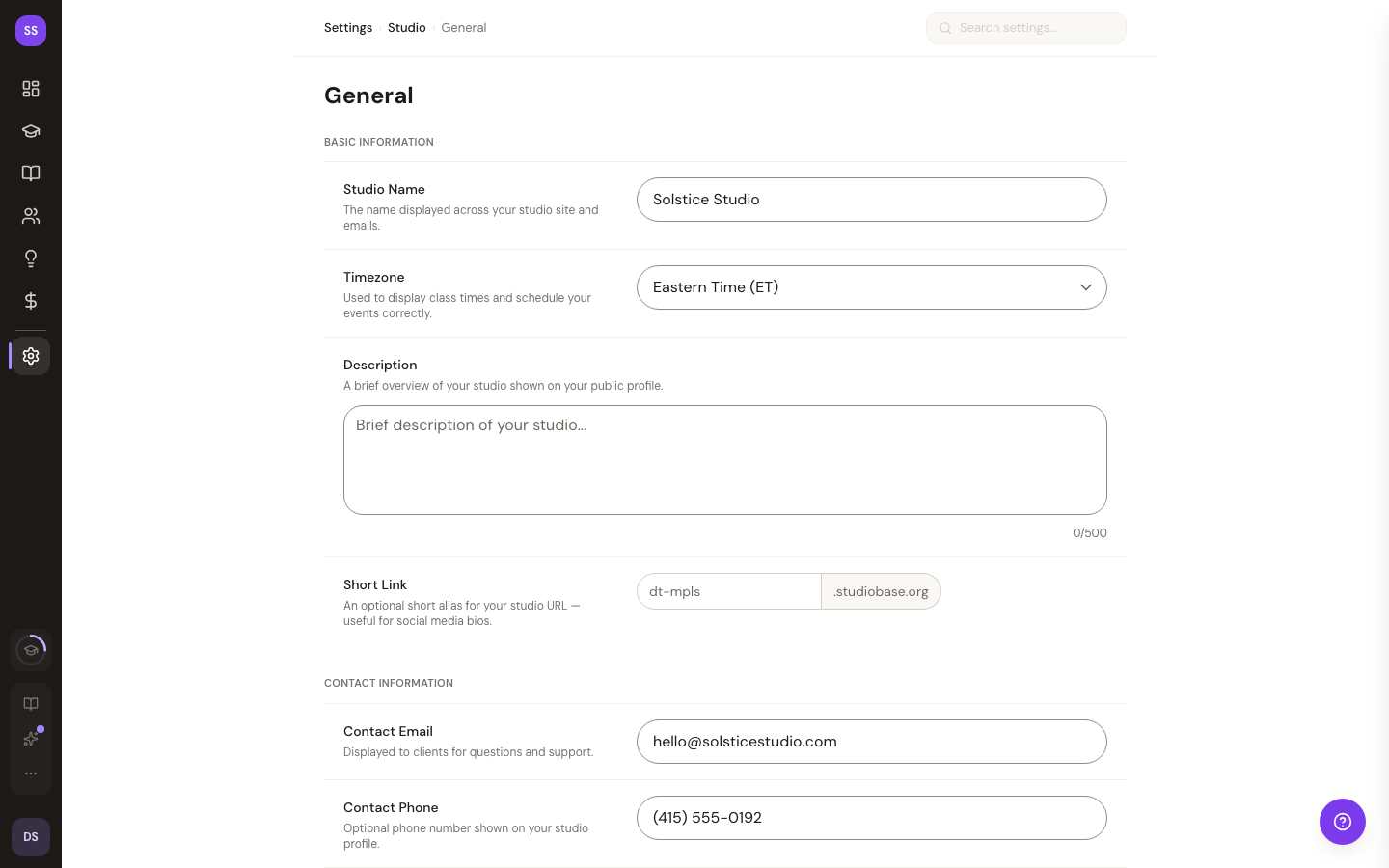
Basic Information
This section covers the essentials of your studio profile.
| Field | Required | Details |
|---|---|---|
| Studio Name | Yes | Your studio's display name. Leading and trailing whitespace is trimmed automatically. |
| Timezone | No | Controls how class times are displayed. Defaults to Eastern Time (ET). |
| Description | No | A brief summary of your studio (max 500 characters). Shown on your public page. |
Timezone Options
Select the timezone that matches your studio's physical location:
- Eastern Time (ET)
- Central Time (CT)
- Mountain Time (MT)
- Pacific Time (PT)
- Alaska Time (AKT)
- Hawaii Time (HT)
Your timezone affects how class schedules are displayed to clients, so make sure it matches where your studio operates.
Contact Information
All contact fields are optional. When filled in, they appear on your studio's public page and in booking-related pages so clients can reach you.
| Field | Details |
|---|---|
| Contact Email | A general email address for client inquiries (e.g., studio@example.com) |
| Contact Phone | A phone number clients can call or tap on mobile (e.g., (555) 123-4567) |
| Website URL | A link to your main business website, if different from your StudioBase page |
Location
Your address powers the embedded map and "Get Directions" button on your studio's public page. All location fields are optional -- enter what applies to your studio.
| Field | Details |
|---|---|
| Street Address | Street name and number, including suite or unit if applicable |
| City | City name |
| State | Select from the dropdown of US states |
| ZIP Code | 5-digit or 9-digit ZIP code (max 10 characters) |
| Country | Read-only, set to "United States" |
For more on how your location is displayed to clients, see the Studio Location guide.
Saving Your Changes
At the bottom of the page you have two options:
- Save Changes -- Saves all fields on the page. The save button is disabled until you enter a studio name.
- Reset -- Discards unsaved changes and reloads the last saved values.
A confirmation message appears briefly after a successful save.
Tips
- Set your timezone early. Class times are displayed in your selected timezone, so configure this before you start scheduling.
- Add contact info. Even if your studio has a separate website, listing an email and phone number here makes it easy for clients to reach you from your StudioBase page.
- Be specific with your address. Include a suite or unit number so clients can find your exact location. The embedded map on your public page uses this address for directions.
Need Help?
Contact support at support@studiobase.org if you have questions about your general settings.