Understanding Insights
The Insights dashboard highlights what needs your attention — from students at risk of leaving to classes that need a schedule review. StudioBase analyzes your booking data and surfaces actionable recommendations.
Accessing Insights
- Go to your Dashboard
- Click the Weekly tab in the analytics navigation, or go directly to Insights from the sidebar
How Insights Work
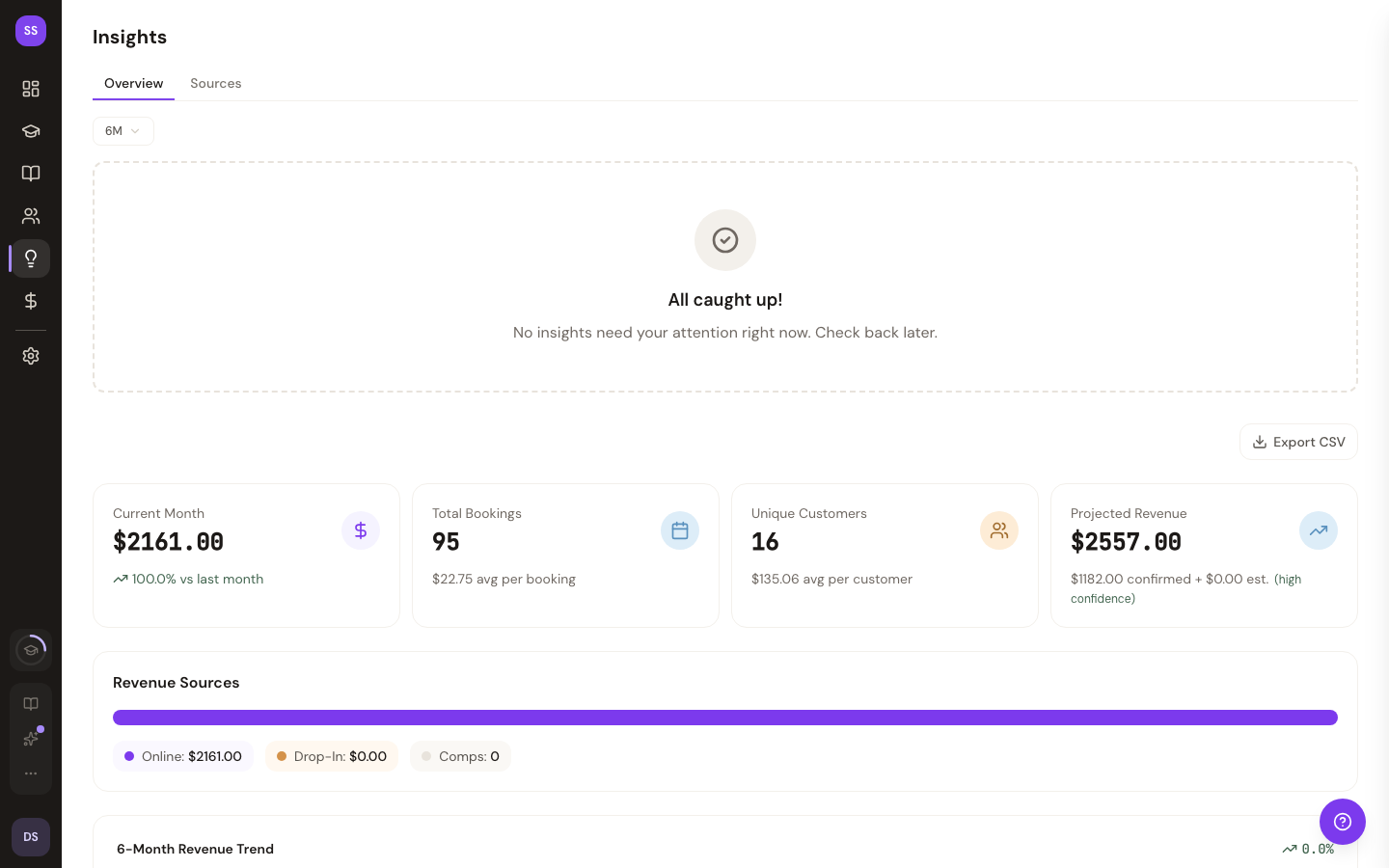
StudioBase calculates insights on demand when you visit the Insights page or click the Refresh button. Each insight is based on your studio's recent booking patterns and student behavior.
Each insight includes:
- A headline summarizing what was found
- Context explaining why it matters
- Actions you can take (when applicable)
- Details you can expand for deeper data
Insight Types
Students at Risk
Identifies students whose booking frequency has declined. Shows which students haven't booked recently and may be at risk of leaving.
What you can do: Send a win-back email to re-engage them, or view the full list of at-risk students.
Almost Regular Students
Identifies students who are close to becoming regulars (booking frequently but not yet consistent). These students are a conversion opportunity.
What you can do: Send an encouragement email to help them commit to a regular schedule.
Low Fill Class Warning
Alerts you to upcoming classes that are below capacity, helping you take action before the class runs with too few students.
What you can do: Promote the class to fill remaining spots, or consider cancelling if fill rate is very low.
Underperforming Class
Flags classes with consistently low fill rates. Includes performance trends so you can see if the issue is improving or worsening.
What you can do: Consider adjusting the schedule, price, or marketing for these classes.
Priority Levels
Insights are sorted by priority so the most important items appear first:
| Priority | Meaning |
|---|---|
| Urgent | Requires immediate attention (e.g., students churning) |
| Opportunity | Growth opportunity worth acting on |
| Win | Positive achievement to celebrate |
| Info | Informational — good to know |
Taking Action
Many insights include action buttons:
- Send Email — Queue an outreach email to the relevant students. A confirmation dialog shows the recipient count and a preview before sending.
- View Details — Navigate to a related page for more context.
After taking an action, the insight is marked as actioned.
Expanding Details
Click Show details on any insight card to see deeper data. Depending on the insight type, this may include:
- Tables listing specific students or bookings
- Performance charts showing trends over time
- Fill rate breakdowns by class
Dismissing Insights
Click the X button on any insight card to dismiss it. Dismissed insights are removed from your dashboard. New insights will continue to be generated as your data changes.
Refreshing Insights
Click the Refresh button in the top-right corner to recalculate insights with the latest data. This is useful after a busy day of bookings or at the start of your week.
Insights are calculated on demand when you visit the page or click Refresh. Results are cached so subsequent visits load quickly.
Need Help?
Contact support@studiobase.org for questions about insights.