Dashboard Overview
The dashboard is your studio's command center. When you sign in, you see a personalized overview of your day — upcoming classes, attendance numbers, and quick actions to manage your studio.
To access the dashboard, sign in at studiobase.org and you'll land here automatically.
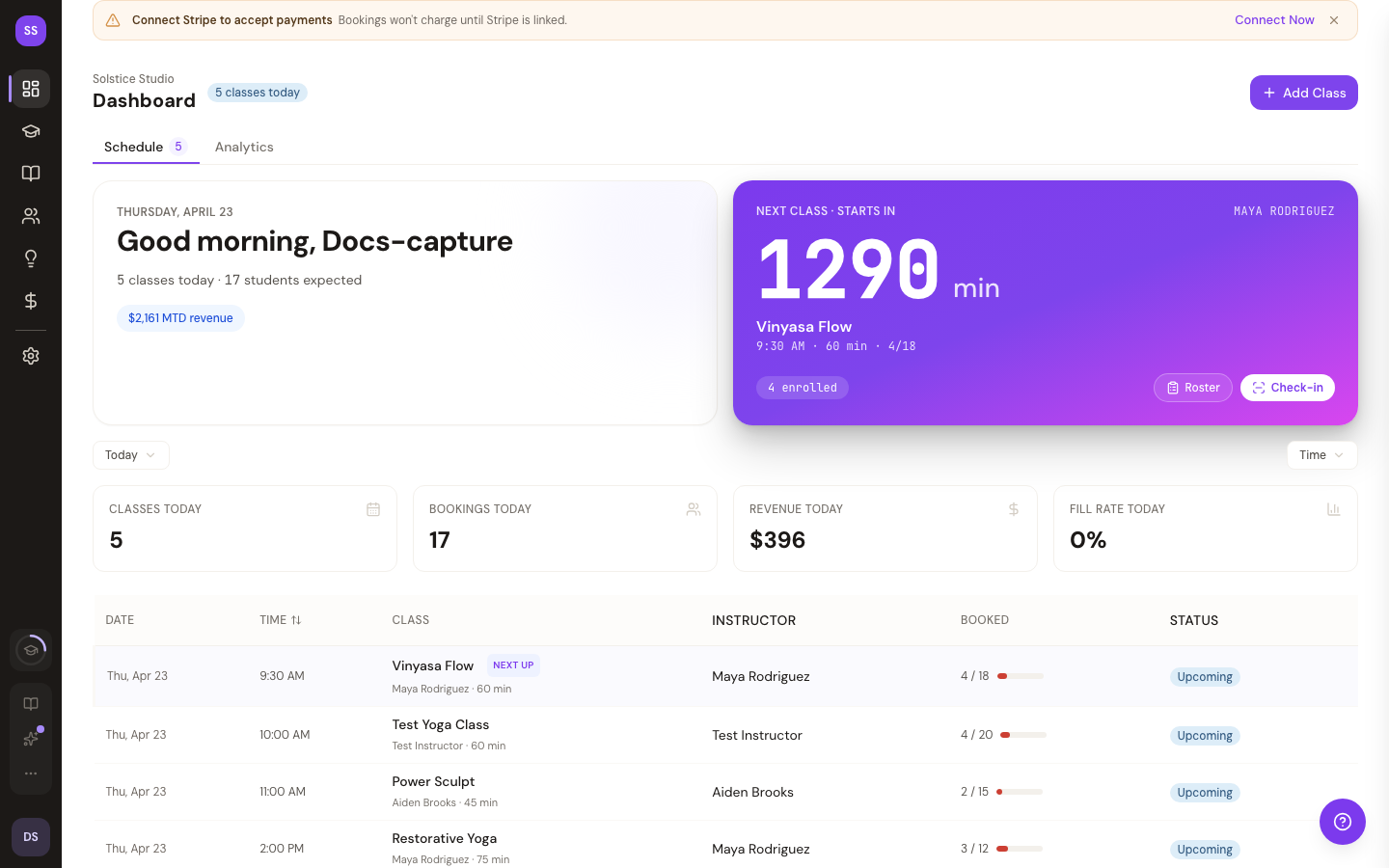
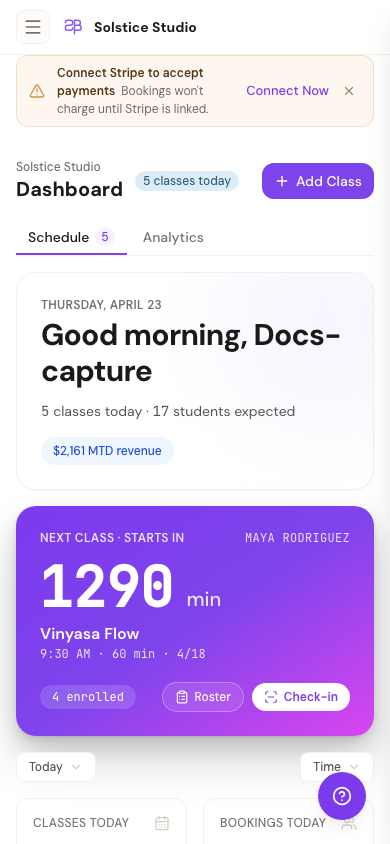
The same view collapses to a single column on mobile:
Header
At the top of the dashboard you'll find:
- A personalized greeting with your name
- Add Class — quick link to create a new class
- Share Link — copies your studio's public booking page URL to your clipboard so you can share it with students
Status Alerts
The dashboard shows one high-priority alert at a time when action is needed:
| Alert | What It Means |
|---|---|
| Stripe not connected | You need to set up payment processing to accept bookings |
| Stripe setup incomplete | You started connecting Stripe but didn't finish |
| Stripe verification pending | Stripe is reviewing your account — no action needed |
| Trial ending soon | Your free trial has less than 7 days remaining |
| Subscription required | You need an active subscription to publish your booking site |
Each alert includes an action button to resolve it. Alerts disappear automatically once the issue is resolved.
Today View
The default tab shows everything happening at your studio today.
Next Class Card
Your next upcoming (or currently live) class is displayed prominently at the top with:
- Status badge — "Live" with a pulsing indicator if the class is in progress, or "Upcoming" if it hasn't started yet
- Countdown timer — time until the class starts, or time remaining for live classes
- Class details — name, time range, duration, and instructor
- Three metrics:
- Booked (or Checked In for live classes) — how many students are registered
- Pending — students awaiting check-in
- Spots Left — remaining capacity
- Check In button — open the attendance check-in modal
Later Today
Any additional classes scheduled for today appear below the hero card as compact rows showing the class name, time, and booking numbers.
Week at a Glance
Below today's schedule, you'll see a 6-day preview of your upcoming week. Each day shows:
- Day name and date
- Classes with name, time, and capacity status
- Color-coded utilization indicators (green for healthy bookings, amber for nearly full, coral for low attendance)
Click any class to go to its detail page.
Completed Classes
If you have classes that already finished today, they appear in a collapsible section showing final attendance numbers (e.g., "8/12 attended"). Click to expand or collapse this section.
Empty State
If you have no classes scheduled today, the dashboard shows a friendly message encouraging you to plan ahead. Use the Add Class button to get started.
Need Help?
Contact support at support@studiobase.org if you have questions about your dashboard.