Integrations
The integrations page lets you connect third-party services to your studio. Currently, StudioBase supports Google Calendar integration.
Go to Dashboard > Settings > Integrations to manage your connections.
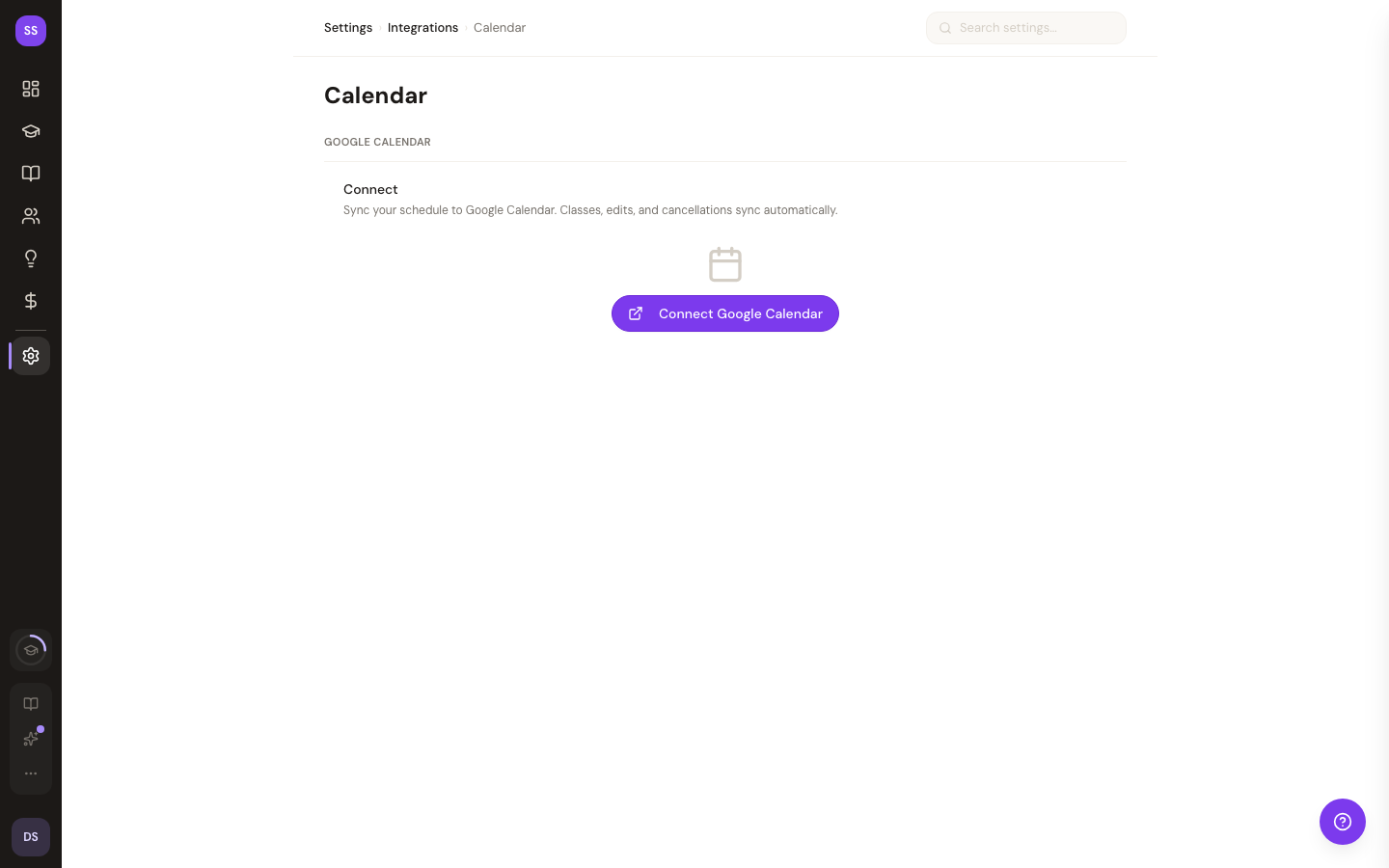
Google Calendar Sync
Automatically sync your StudioBase classes to your Google Calendar. When you create, edit, or cancel classes in StudioBase, the changes are reflected in your calendar in real-time.
Connecting
- Click Connect Google Calendar
- Sign in with your Google account and authorize access
- Select which Google Calendar to sync to (supports multiple calendars)
What Syncs
- New classes are added to your Google Calendar automatically
- Edits to class details (time, name, etc.) update the calendar event
- Cancelled classes are removed from the calendar
Status
Once connected, the integration shows:
- Connected email — which Google account is linked
- Sync status — whether sync is active and working
- Last sync — timestamp of the most recent sync
Troubleshooting
If sync errors occur, you'll see an error message with a Reconnect option. Disconnecting and reconnecting usually resolves sync issues.
Disconnecting
Click Disconnect to remove the Google Calendar integration. Your existing calendar events won't be deleted, but future classes won't sync.
Need Help?
Contact support at support@studiobase.org if you have questions about integrations.