Reset Your Password
If you've forgotten your password or need to reset it for security reasons, StudioBase provides a secure password reset process using email verification.
Password Reset Process
1. Navigate to the Login Page
Visit www.studiobase.org/auth/login
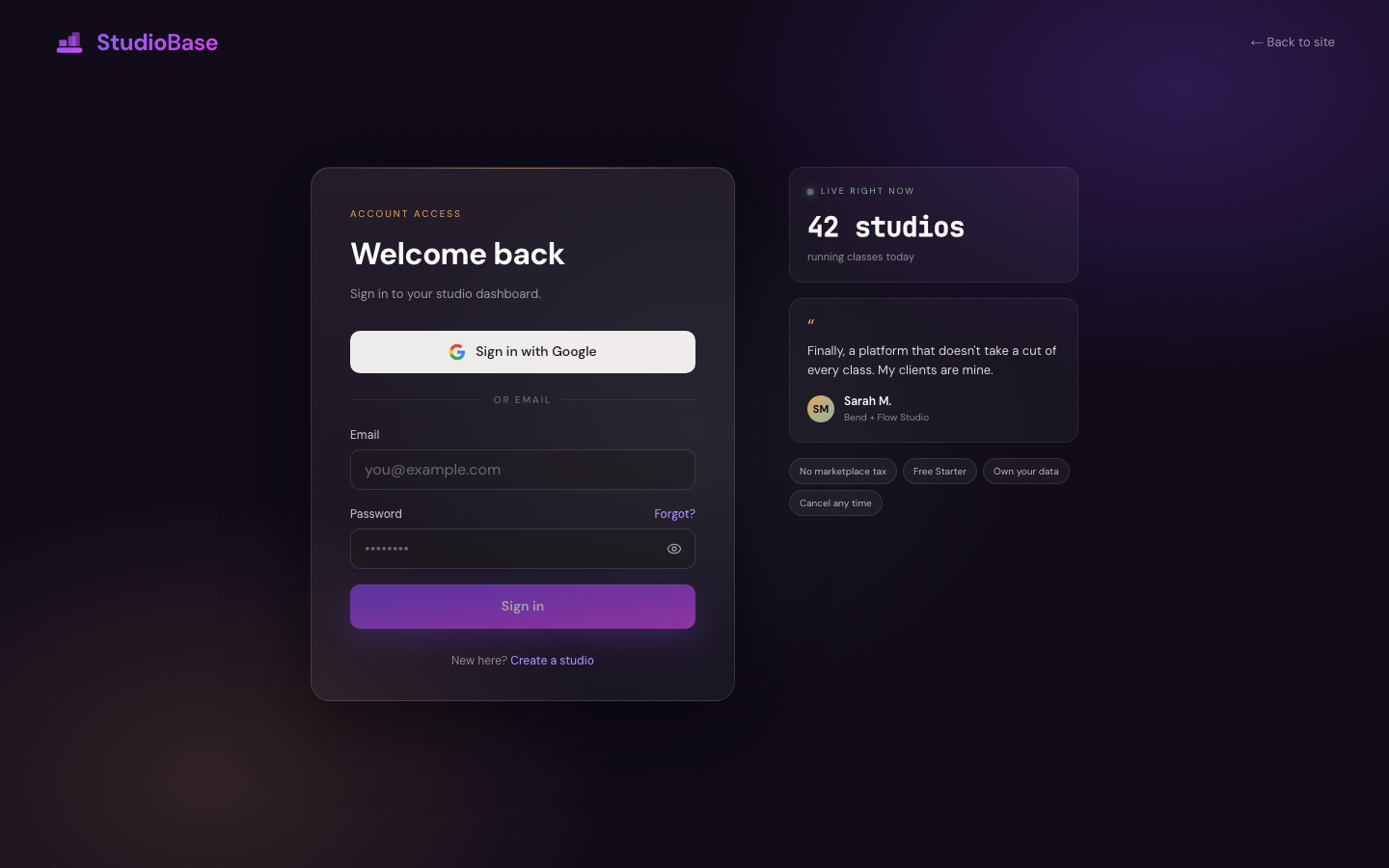
2. Click "Forgot Password?"
Below the password field, click the Forgot Password? link.
3. Enter Your Email Address
On the password reset page, enter the email address associated with your account.
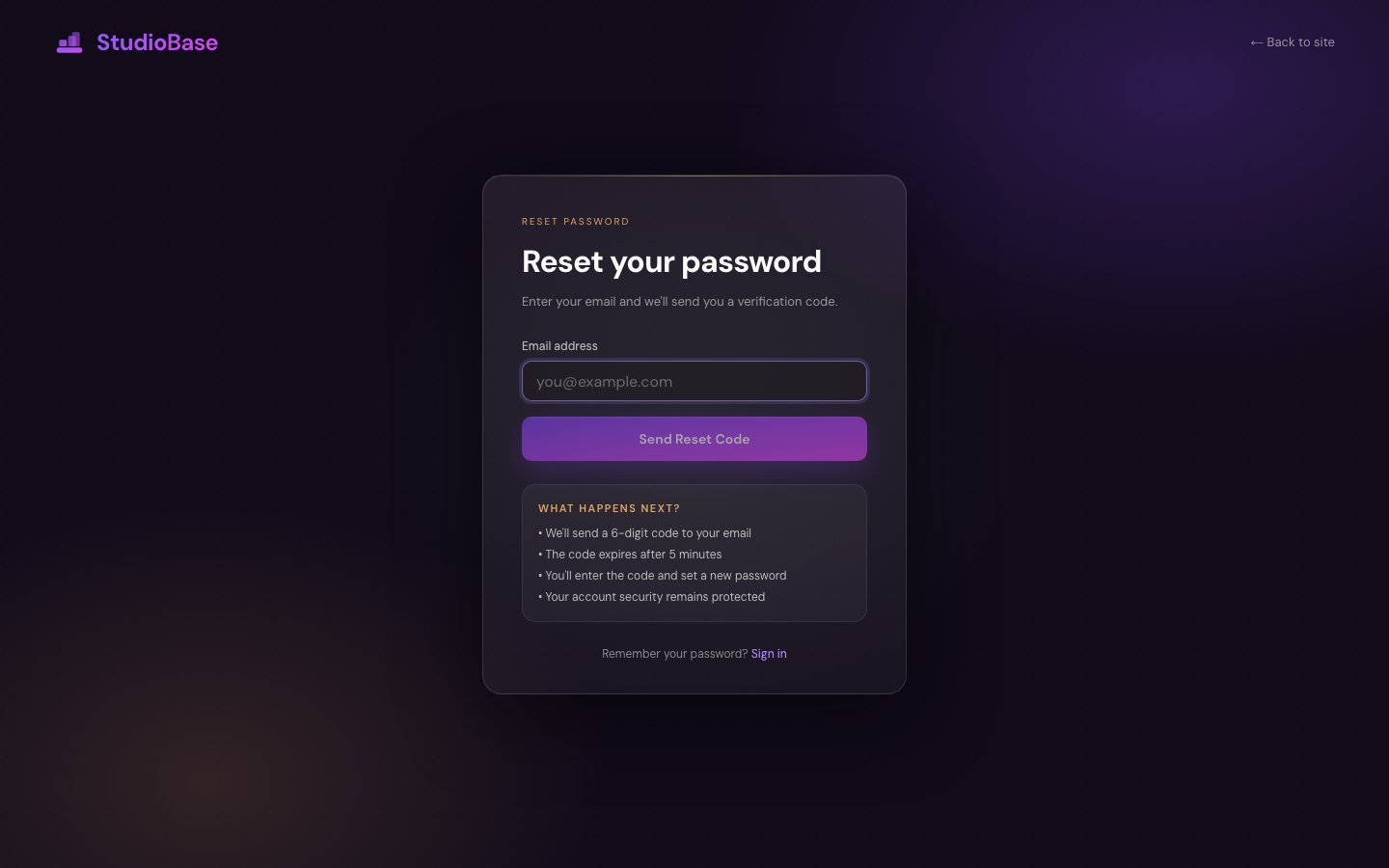
4. Click "Send Reset Code"
Click the button to receive a password reset code via email.
The reset code will be sent to your email address within 1-2 minutes. Check your inbox and spam folder.
Verify Your Email with OTP Code
1. Check Your Email
Look for an email from StudioBase with the subject:
"Reset your StudioBase password"
The email contains a 6-digit verification code (e.g., 123456)
2. Enter the Verification Code
Return to the password reset page and enter the 6-digit code exactly as shown in the email.
3. Submit the Code
Click Verify Code to proceed to the password reset step.
Verification codes expire after 5 minutes for security. If your code expires, request a new one.
Create Your New Password
1. Enter Your New Password
Create a new password that meets all password requirements:
- At least 8 characters long
- Contains uppercase and lowercase letters
- Contains at least one number
- Contains at least one special character (!@#$%^&*)
2. Confirm Your New Password
Re-enter your new password to ensure it's correct.
3. Submit Your New Password
Click Reset Password to save your new password.
After successfully resetting your password, you'll be automatically signed in and redirected to your dashboard.
Security Features
The password reset process includes multiple security measures:
- Email Verification: Ensures you control the email account
- Time-Limited Codes: Codes expire after 5 minutes
- Single-Use Codes: Each code can only be used once
- Rate Limiting: Prevents abuse of the reset system
- Notification Email: You'll receive a confirmation email after password change
Resending the Reset Code
If you didn't receive the email or the code expired:
1. Click "Resend Code"
On the verification code page, click the Resend Code button.
2. Wait for the New Email
A new 6-digit code will be sent to your email address within 1-2 minutes.
3. Use the Latest Code
Always use the most recent code you received. Previous codes become invalid when a new code is requested.
Troubleshooting
Not receiving reset emails
- Check spam/junk folder: Reset emails sometimes get filtered
- Verify email address: Ensure you entered the correct email
- Wait a few minutes: Email delivery can take 1-5 minutes
- Check email provider: Some providers have strict filtering rules
- Contact support: If still not receiving after 10 minutes
"Invalid code" error
- Double-check you entered all 6 digits correctly
- Use the most recent code if you requested multiple codes
- Codes are case-insensitive but all characters must match
- Request a new code if you've tried multiple times
"Expired code" error
- Codes expire after 5 minutes for security
- Click Resend Code to get a new verification email
- Enter the new code within 5 minutes
"Password does not meet requirements" error
- Review the password requirements
- Use the real-time strength indicator to see which criteria are missing
- Ensure your password is at least 8 characters with uppercase, lowercase, number, and special character
"This password has been compromised" error
- The password you chose appears in known data breaches
- Create a completely different, unique password
- Avoid common passwords and dictionary words
"Email not found" error
- The email address isn't associated with any account
- Check for typos in your email address
- Try creating a new account if needed
- Contact support if you believe this is an error
Can't remember email address
- Check your email clients for past StudioBase messages
- Try common email addresses you use
- Contact support@studiobase.org with your studio name or other account details
After Resetting Your Password
Once your password is reset:
- Automatic Sign-In: You'll be signed in automatically
- Confirmation Email: Check your inbox for a password change confirmation
- Update Saved Passwords: Update any saved passwords in your browser or password manager
- Review Account Activity: Check your security settings for any suspicious activity
Alternative Sign-In Methods
If you're having trouble resetting your password:
Google OAuth Users
- If you signed up with Google, use Continue with Google to sign in
- You don't need a password if you use Google OAuth
Security Best Practices
After resetting your password:
- Use a strong, unique password: Follow password requirements
- Use a password manager: Store your password securely
- Don't reuse passwords: Use a unique password for StudioBase
- Monitor your account: Check for suspicious activity in security settings
Preventive Measures
To avoid needing password resets in the future:
- Save your password: Use a password manager or browser's built-in manager
- Use Google OAuth: Link your Google account for easy sign-in
- Keep recovery email updated: Ensure you can always access your email
Next Steps
After resetting your password:
- Sign in to your account
- Review your security settings
- Update your password in any saved locations
Need Help?
If you're unable to reset your password, contact support@studiobase.org with:
- The email address associated with your account
- Description of the issue
- Screenshots of any error messages