Promotions
Promotions let you offer time-based discounts on your classes. Unlike promo codes, which require guests to enter a code at checkout, promotions apply automatically during the date range you set. Guests see the discounted price directly on your booking page and class detail view.
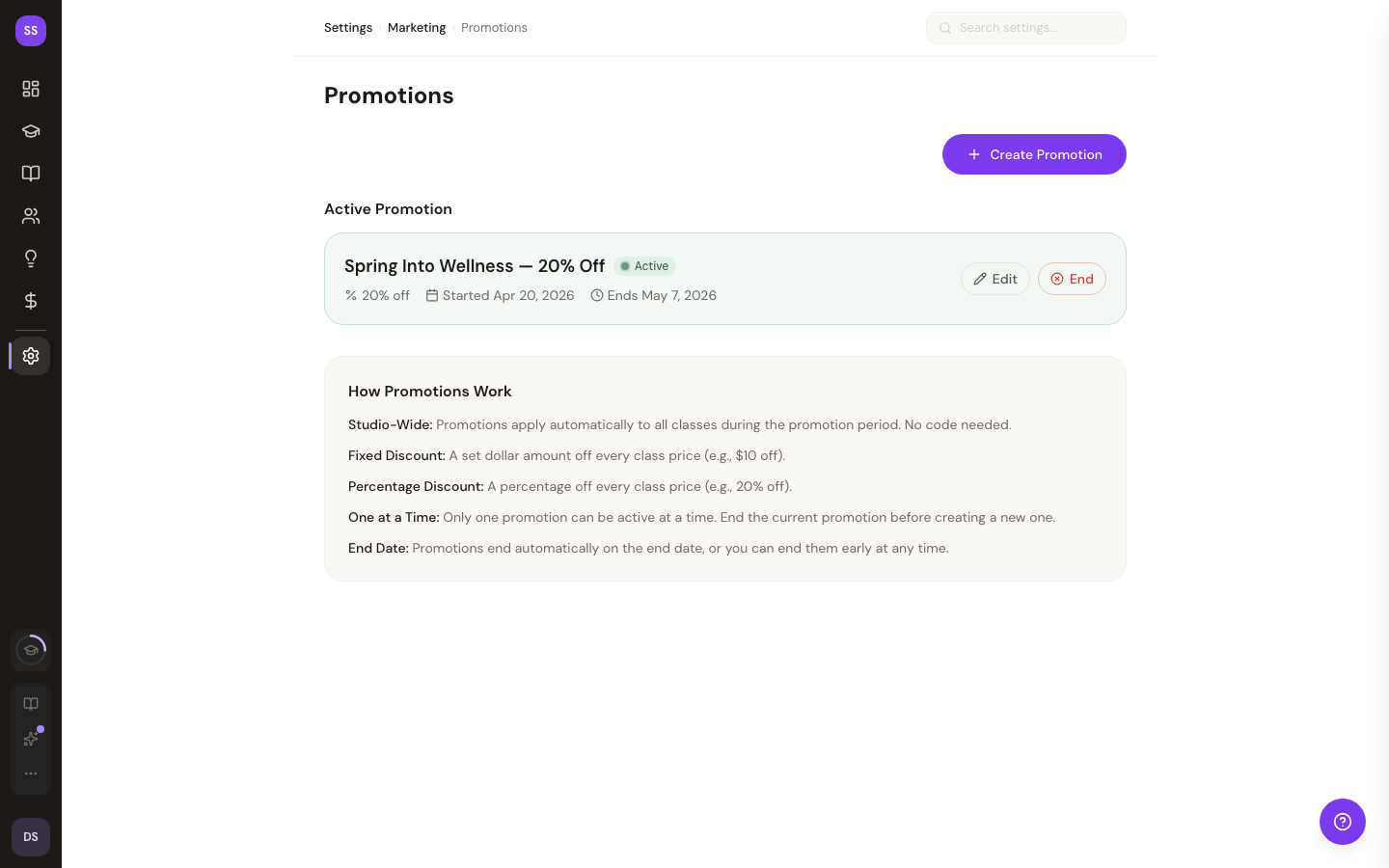
To manage promotions, go to Dashboard > Settings > Promotions.
Creating a Promotion
Click Create Promotion to open the creation form.
| Setting | Required | Details |
|---|---|---|
| Name | Yes | A descriptive label for the promotion (e.g., "Summer Sale", "New Year Special"). This is visible to guests. |
| Discount Type | Yes | Choose Percentage (e.g., 20% off) or Fixed Amount (e.g., $5 off) |
| Discount Value | Yes | For percentages: a value between 1 and 100. For fixed amounts: the dollar amount to discount. |
| Start Date | Yes | The date and time when the promotion becomes active. |
| End Date | Yes | The date and time when the promotion expires. |
| Class Restrictions | No | Optionally limit the promotion to specific classes. Leave blank to apply to all classes. |
Click Create Promotion to save. The promotion will automatically activate when the start date arrives and deactivate when the end date passes.
How Guests See Promotions
When a promotion is active, guests see the discount applied directly on your studio's booking page:
- Promotion banner -- A banner appears on the booking page (below the date tab bar) announcing the active promotion.
- Class cards -- The original price appears with a strikethrough, and the discounted price is displayed alongside it.
- Booking sheet -- When a guest taps a class card, the booking sheet shows both the original and discounted prices. The discounted price is used as the booking total. No code entry is needed.
Managing Promotions
Each promotion in the list shows its name, discount, date range, and current status.
Status Badges
| Badge | Meaning |
|---|---|
| Active | Promotion is currently running (within the date range and enabled) |
| Scheduled | Promotion is enabled but the start date has not arrived yet |
| Inactive | Promotion has been manually deactivated |
| Expired | Promotion has passed its end date |
Activating and Deactivating
Click the toggle to activate or deactivate a promotion. Deactivating a promotion removes the discount from all class listings immediately, even if the date range has not ended.
Editing a Promotion
Click a promotion to edit its name, discount, dates, or class restrictions. Changes take effect immediately.
Deleting a Promotion
Click the delete button to remove a promotion. A confirmation dialog will appear before it is permanently deleted.
Promotions vs. Promo Codes
| Promotions | Promo Codes | |
|---|---|---|
| How it works | Automatic -- discount shows on class listings | Manual -- guest enters a code at checkout |
| Timing | Active during a set date range | Active until expiry or max uses reached |
| Visibility | Guests see discounted pricing upfront | Guests see the discount only after entering the code |
| Stacking | Does not stack with promo codes or class pack credits | Does not stack with promotions or class pack credits |
When both a promotion and a promo code could apply to the same class, only one discount is used. Promotions, promo codes, and class pack credits do not stack — only one discount or credit can be applied per booking.
Tips
- Use promotions for seasonal sales. Set the date range to match your campaign (e.g., a week-long holiday sale) and let the system handle activation and deactivation.
- Restrict to specific classes when needed. If you only want to discount introductory classes or a specific series, use class restrictions to keep your other pricing intact.
- Preview the guest experience. After creating a promotion, visit your studio's public page to confirm the strikethrough pricing looks correct.
- Deactivate early if needed. You can manually deactivate a promotion before its end date if a sale needs to end sooner than planned.
Need Help?
Contact support at support@studiobase.org if you have questions about promotions.