Rewards Program
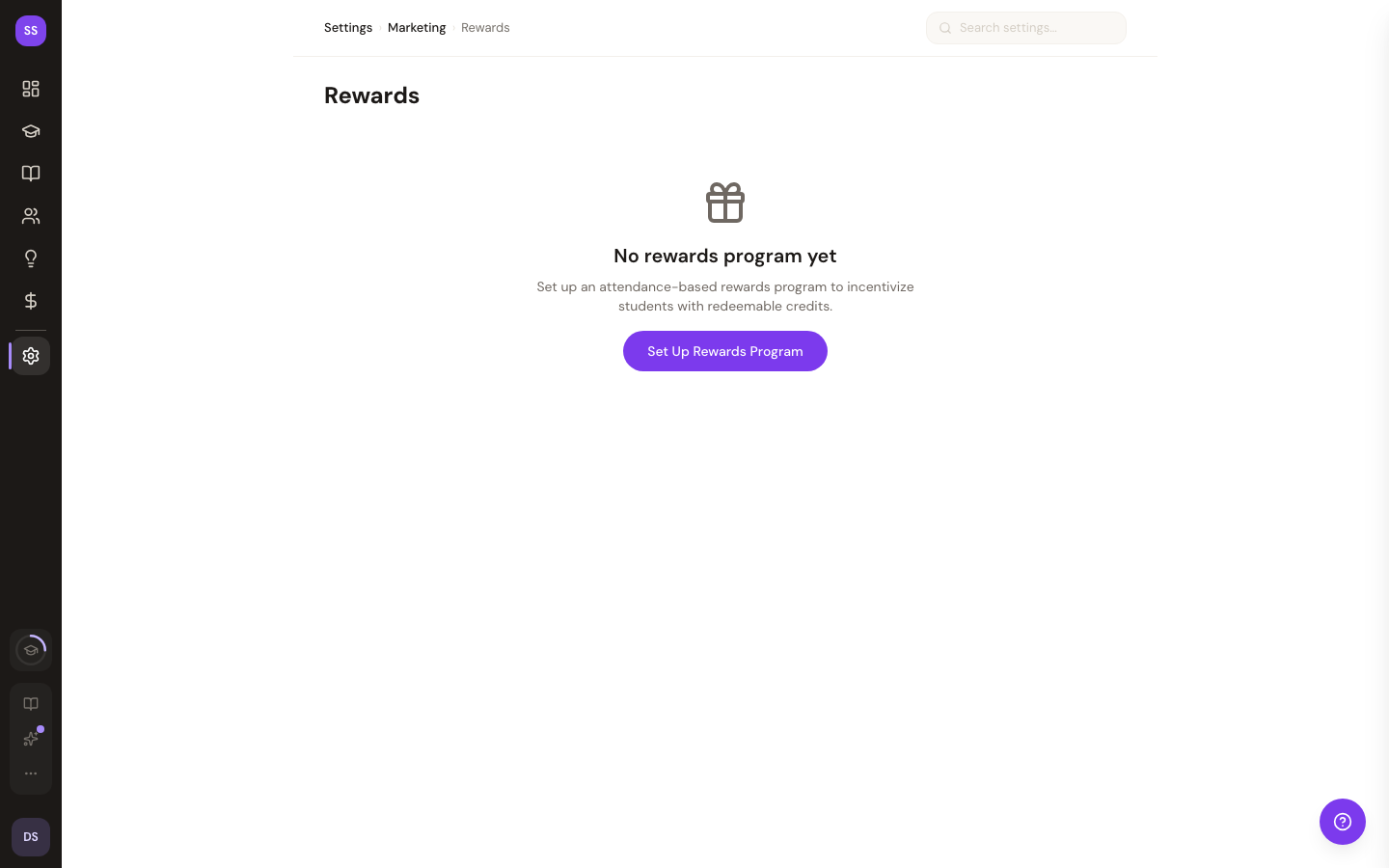
The rewards program lets you give students free class credits based on attendance. Students earn credits automatically as they attend classes, and redeem them as a payment method when booking future classes. This encourages repeat visits and rewards your most loyal clients.
To manage your rewards program, go to Dashboard > Settings > Rewards.
How It Works
- You create a rewards program and define the rules (how many classes until a reward).
- Students attend classes and get checked in (manually or via auto-checkin).
- When a student hits an attendance milestone, they automatically earn reward credits.
- Students use those credits to book future classes for free.
Credits are tracked per student by email address and are specific to your studio.
Program Types
Repeating
A repeating program awards credits on a fixed cycle. For example, "every 10 classes, earn 1 free credit." After earning a reward, the counter resets and the student starts working toward the next one. The cycle repeats indefinitely.
| Setting | Details |
|---|---|
| Attendance Interval | Number of classes between each reward (e.g., 10) |
| Credits Awarded | Number of credits earned each time the interval is reached (e.g., 1) |
Best for: Studios that want a simple, ongoing loyalty program. Students always have something to work toward.
Tiered
A tiered program defines custom milestones at specific attendance thresholds. Each milestone awards a set number of credits and is earned once. For example:
| Milestone | Attendance Threshold | Credits Awarded |
|---|---|---|
| 1 | 5 classes | 1 credit |
| 2 | 15 classes | 2 credits |
| 3 | 30 classes | 5 credits |
Once a student earns all milestones, they are done. New milestones you add later will be available to all students who haven't reached them yet.
Best for: Studios that want to offer increasing rewards as students become more committed, or studios that want to cap total rewards at a specific level.
Creating a Rewards Program
- Go to Dashboard > Settings > Rewards.
- Click Create Rewards Program.
- Choose a program type: Repeating or Tiered.
- Configure the settings:
- For Repeating: set the attendance interval and credits awarded per cycle.
- For Tiered: add milestones with attendance thresholds and credits awarded at each level.
- Choose a credit expiry mode: Never expire, Fixed (expire a set number of days after they're earned), or Inactivity (expire after a set number of days with no attendance).
- Click Save Program.
The program is active immediately. Students begin earning progress from their next checked-in booking.
Managing Your Program
Activating and Deactivating
Use the toggle at the top of the rewards settings page to activate or deactivate your program. When deactivated:
- Students stop earning new credits from attendance.
- Existing credits remain available for redemption.
- Progress toward milestones is preserved.
Editing the Program
You can change your program type, intervals, milestones, and expiry settings at any time. Changes take effect on the next attendance check-in.
- Switching from repeating to tiered (or vice versa) resets the program structure but preserves existing student balances.
- Adding new tiered milestones makes them immediately available to all students who qualify.
Deleting the Program
Click Delete Program to permanently remove your rewards program. A confirmation dialog will appear. Deleting the program removes the configuration, but existing student credit balances are preserved until used or expired.
How Students See Rewards
Booking Page
When your studio has an active rewards program, signed-in students see:
- Progress banner -- A progress bar below the class packs section showing how close they are to their next reward. For repeating programs, it shows the current cycle position (e.g., "8/10 classes"). For tiered programs, it shows progress toward the next milestone specifically.
- Payment option -- When booking a class, students with available reward credits see "Use Reward Credit" as a payment method alongside card payment and class pack credits. Selecting it books the class for free using one reward credit.
Account Drawer
Students can open the account drawer (via the account icon on your booking page) to see a "My Rewards" section showing:
- Current credit balance
- Progress bar toward the next milestone
- How many more classes until the next reward
Sign-In Prompt
Students who are not signed in see a prompt to sign in to check for available credits. This covers both class pack credits and reward credits.
Manual Credit Adjustments
Sometimes you need to add or remove credits manually — for example, to compensate a student for a canceled class, correct an error, or offer a promotional bonus.
From the Rewards Settings Page
- Go to Dashboard > Settings > Rewards.
- Scroll to the Manual Credit Adjustment section.
- Search for a client by name using the dropdown, or click Enter email manually to type an email address directly.
- Choose a direction: Add or Remove.
- Enter the number of credits.
- Optionally add a note explaining the reason.
- Review the preview and click Apply Adjustment.
The client dropdown searches your existing clients, showing names and email addresses. This helps prevent adjusting credits for the wrong person. The manual email fallback is available for recipients who are not yet in your client list.
From a Client's Profile
- Go to Dashboard > Clients and click on a client.
- Find the Reward Credits section (below the stat cards).
- Click Adjust Credits to expand the form.
- Choose Add or Remove, enter the amount and optional note, then apply.
This is useful when you are already reviewing a client's profile and want to make a quick adjustment without navigating to the rewards settings page.
Viewing Client Credit Balances
Clients List
The Dashboard > Clients page includes a Credits column showing each client's current reward credit balance. The column is sortable — click the header to sort clients by credit count (ascending or descending). Clients with zero credits show a dash.
Client Profile
Each client's profile page shows their current reward credit balance in the Reward Credits section, along with the adjustment form described above.
Credit Expiry
Credits can expire in one of two ways (or never). A daily background job handles both; expired credits are removed from the student's balance and recorded in the transaction log. The two modes are mutually exclusive — a program uses one at a time.
Fixed expiry — credits expire a set number of days after they're earned (e.g., 90 days). Expiry is calculated from each credit's earn date.
Inactivity expiry — a student's entire balance expires after a set number of days with no attendance (e.g., 180 days). Any attended class resets the clock, so active students never lose credits — this is the more member-friendly option. When the window is crossed, the whole remaining balance expires at once.
In both modes, students receive expiry reminder emails 7 days and 1 day before their credits expire. For inactivity mode the reminder nudges them to attend a class before the date to keep their credits.
- Switching modes (or changing the day count) affects future behavior; credits already earned keep the rules that were in place when they were earned.
- If you choose Never expire, credits never expire and no reminders are sent.
How Credits Are Earned
Credits are awarded automatically when a student's booking is checked in. This happens in two ways:
- Manual check-in -- When you mark a student as checked in from the class detail page.
- Auto-checkin -- The system automatically checks in students whose class has ended (runs periodically via a background job).
Each check-in increments the student's attendance counter. When the counter reaches a milestone threshold, credits are awarded instantly.
If a student has enough attendance to qualify for multiple milestones at once (for example, if they had 20 prior check-ins when you first create a tiered program with milestones at 5, 10, and 15), all qualifying milestones are awarded on their next check-in.
Rewards vs. Class Packs
| Rewards | Class Packs | |
|---|---|---|
| How students get credits | Earned automatically through attendance | Purchased upfront with a payment |
| Cost to student | Free (earned by attending) | Paid (bought at a bundled rate) |
| Cost to studio | You absorb the cost of free classes | Revenue from pack sales |
| Restrictions | Universal — works for any class | Can be restricted to specific classes |
| Expiry | Configurable (or never) | Configurable (or never) |
| Stacking | Does not stack with class packs or promotions | Does not stack with rewards or promotions |
When a student has both reward credits and class pack credits available, both options appear in the booking payment section. The student chooses which to use. Only one credit type can be applied per booking.
Program Stats
The rewards settings page shows four key metrics at the top:
| Stat | Description |
|---|---|
| Credits Awarded | Total credits earned by all students across the life of the program |
| Credits Redeemed | Total credits used to book classes |
| Credits Expired | Total credits lost to expiry |
| Active Students | Number of students with at least one credit remaining |
These stats update as students earn and use credits.
Tips
- Start simple with a repeating program. "Every 10 classes, earn 1 free credit" is easy for students to understand and gives them a clear goal.
- Set a reasonable expiry. 90 or 180 days encourages students to stay active without feeling pressured. No expiry works too if you prefer a fully open-ended program.
- Use manual adjustments sparingly. They are great for corrections and one-off bonuses, but overusing them can dilute the value of the program.
- Check the Credits column on your clients list. Sorting by credits helps you identify your most loyal students and spot clients who may be close to earning a reward.
- Combine with class packs for maximum engagement. Rewards incentivize attendance, while class packs incentivize upfront commitment. They complement each other well.
Referral Program
The referral program lets students share a personal invite link with friends. When a referred guest attends their first class at your studio, both the referring student and the new guest earn reward credits automatically. Referrals are disabled by default and can be turned on independently of the attendance milestones program.
Enabling the referral program
- Go to Dashboard > Settings > Rewards.
- Find the Referral Program card.
- Toggle the referral program on.
- Set the credits to award the referring student and the new guest separately.
- Click Save.
The referral program is off by default so you can enable it deliberately when your rewards program is ready.
What each side earns
| Side | Setting | Notes |
|---|---|---|
| Referrer (the existing student who shared the link) | Referral referrer credits | Set to 0 to skip the referrer reward entirely |
| Referee (the new guest using the link) | Referral referee credits | Set to 0 to skip the new-guest welcome bonus |
Both values can be configured independently. Setting either to 0 disables that side of the grant — for example, you can reward only the new guest without giving the referring student anything, or vice versa.
How students find their referral link
Students open the Account drawer on your booking page (the account icon in the top navigation) and look for the Refer a friend section. Their personal referral link is shown there and can be copied or shared directly.
Each link is unique per student per studio. Sharing the link with multiple people is fine — each new guest who uses it and attends a class triggers a separate reward.
When the reward is granted
The reward fires at first class attendance (check-in), not at booking. A referred guest booking a class does not trigger the credits. Credits are granted only after the guest is checked in — either manually from the class detail page or automatically by the system after the class ends.
This means:
- Booking alone does not generate a referral reward.
- Cancelling before the class is not rewarded.
- The reward fires exactly once per referred guest, on their first attended class at your studio.
If the referral program is disabled at the time a referred guest checks in, the reward is held and fires at their next check-in after the program is re-enabled. No rewards are lost if you temporarily turn the program off.
Credit expiry for referral credits
Referral credits follow the same expiry rules as attendance milestone credits. If your rewards program is configured with a credit expiry period, referral credits earned by both sides expire on the same schedule. Guests with credits expiring soon receive the same reminder emails as they would for milestone credits. If you have not set a credit expiry, referral credits never expire.
Referral program stats
The four stat cards at the top of the rewards settings page include referral credits in their totals. Credits Awarded counts all credits granted through referrals as well as milestones. The individual transaction log (visible from a client's profile) labels referral grants separately so you can distinguish them from milestone credits.
Birthday Rewards
Birthday rewards let you surprise guests with free reward credits on their birthday. Guests optionally share their birthday (month and day only — no year) with your studio, and on the day, the credits are granted automatically and a celebratory email is sent. Birthday rewards are disabled by default.
Enabling birthday rewards
- Go to Dashboard > Settings > Rewards.
- Find the Birthday Rewards card.
- Toggle birthday rewards on.
- Set the number of credits to grant on each guest's birthday (1 to 100).
- Click Save.
Birthday rewards are off by default so you can enable them deliberately when your rewards program is ready.
How guests add their birthday
Guests open the Account drawer on your booking page (the account icon in the top navigation) and look for the Birthday section. They pick their birth month and day and save — that's it. Guests can edit their birthday later from the same place.
Only the month and day are collected, never the year, so a guest's age is not stored or derivable. A birthday shared with your studio is visible only to your studio.
When the reward is granted
On the guest's birthday, the system automatically:
- Grants the configured number of reward credits to the guest's balance.
- Sends a celebratory birthday email letting them know the credits are waiting.
Each guest receives the birthday grant at most once per year, even if they change their stored birthday during the year.
Birthday credits follow the same expiry rules as attendance milestone credits. If your rewards program is configured with a credit expiry period, birthday credits expire on the same schedule; otherwise they never expire.
Streak Bonuses
Streak bonuses reward guests who attend consistently. When a guest attends classes on enough distinct days within a week or month, they earn a one-time bonus credit grant for that period. Streak bonuses are disabled by default.
Enabling streak bonuses
- Go to Dashboard > Settings > Rewards.
- Find the Streak Bonuses card.
- Toggle streak bonuses on.
- Configure the three settings below.
- Click Save.
| Setting | Options | Notes |
|---|---|---|
| Window | Weekly or Monthly | Defines the period in which attendance is counted |
| Threshold | 2–31 distinct days | Number of different days with an attended class required to earn the bonus |
| Bonus credits | 1–100 | Credits awarded when the threshold is reached |
How streaks are counted
Attendance is counted in distinct days, not total classes. If a guest attends two classes on the same day, that still counts as one day toward their streak. Each new day with at least one attended class adds one day to the count.
- Weekly window: the week runs Monday through Sunday in your studio's timezone.
- Monthly window: the month is the calendar month (e.g., June 1–30).
Once a guest reaches the threshold within the current period, the bonus credits are granted immediately — and only once per period. The streak resets at the start of each new week or month, and guests can earn the bonus again.
Only check-ins count. Booking a class without attending (or cancelling before check-in) does not advance the streak.
Credit expiry for streak bonus credits
Streak bonus credits follow the same expiry rules as all other reward credits. If your rewards program has a credit expiry period configured, streak bonus credits expire on the same schedule and are included in the same expiry-reminder emails. If you have not set a credit expiry, streak credits never expire.
What guests see
Guests see their streak progress in two places:
- Booking page — a progress bar shows how many distinct days they have attended in the current period and how many remain until the bonus.
- Account drawer ("My Rewards" section) — the same streak progress is visible alongside their overall credit balance.
Promotional Multipliers
A promotional multiplier lets you run a time-limited boost on credit earnings — for example, to celebrate a studio anniversary, reward attendance during a slow season, or thank loyal clients.
Enabling a promotional multiplier
- Go to Dashboard > Settings > Rewards.
- Find the Promotional Multiplier card.
- Toggle the multiplier on.
- Set the multiplier value (2× – 5×) and the start and end dates.
- Click Save.
The multiplier is active only for classes whose date falls within the window, using your studio's time zone. Classes outside the window earn credits at the normal rate.
What is multiplied
| Credit type | Multiplied? |
|---|---|
| Attendance milestone credits | Yes |
| Streak bonus credits | Yes |
| Referral credits (referrer and referee) | No |
| Birthday credits | No |
| Manual credit adjustments | No |
Only credits that are earned automatically through class attendance and streaks are boosted. Referral, birthday, and manual grants are always issued at face value regardless of an active multiplier.
A 3× multiplier on a program that awards 1 credit per milestone grants 3 credits when a student hits that milestone during the promo window. The underlying program structure (interval, milestones) does not change — only the credits awarded scale up.
Reward Catalog
The reward catalog lets guests redeem credits for items beyond free classes — branded merch, a guest pass for a friend, a discount code, or anything else you want to offer. You define the items, the credit cost, and whether stock is limited. The existing free-class redemption is unchanged. The catalog is disabled by default.
Enabling the reward catalog
- Go to Dashboard > Settings > Rewards.
- Find the Reward Catalog card and toggle it on.
When enabled, the catalog section appears on your guests' booking page in the "My Rewards" account drawer. When disabled, guests see only the free-class redemption option as usual.
Adding catalog items
- In the Reward Catalog card, click Add item.
- Fill in the fields:
| Field | Required | Notes |
|---|---|---|
| Name | Yes | Displayed to guests (e.g., "Studio water bottle") |
| Credit cost | Yes | How many reward credits to deduct per redemption |
| Description | No | Optional details shown to the guest at redemption |
| Category | No | Groups items in the catalog (e.g., "Merch", "Passes") |
| Stock | No | Leave blank for unlimited; enter a number to cap how many can be claimed |
- Click Save.
Items appear in the catalog immediately. You can add, edit, or remove items at any time. Editing a live item (name, cost, description) does not affect pending redemptions already in flight.
How guests redeem
Guests open the Account drawer on your booking page (the account icon in the top navigation) and go to the My Rewards section. The catalog appears below their credit balance. To redeem:
- Guest browses available items and clicks Redeem.
- Credits are deducted from their balance immediately.
- They receive a redemption confirmation email with a pickup code.
- They bring the pickup code to your front desk to collect the item.
Out-of-stock items are shown as unavailable. Guests cannot redeem an item if their balance is below its credit cost.
Fulfilling and cancelling redemptions
The Pending Redemptions list in Settings → Rewards → Reward Catalog shows every open redemption — guest name, item, credit cost, and the pickup code.
- Fulfill — click when you hand over the item. The redemption is closed and removed from the pending list.
- Cancel — available only while a redemption is still pending. Cancelling refunds the full credit cost back to the guest's balance and, if the item has a stock limit, restocks one unit. Use this for situations where the item is no longer available or the guest requests a reversal before pickup.
Once a redemption is marked Fulfilled, it cannot be reversed. Cancel before fulfilling if you need to refund the credits.
Stock management
If you set a stock quantity on an item, the catalog displays how many remain. When stock reaches zero, the item shows as unavailable until stock is manually increased. Fulfilled redemptions permanently consume stock; cancelled redemptions restore stock automatically.
Need Help?
Contact support at support@studiobase.org if you have questions about the rewards program.