Transactions
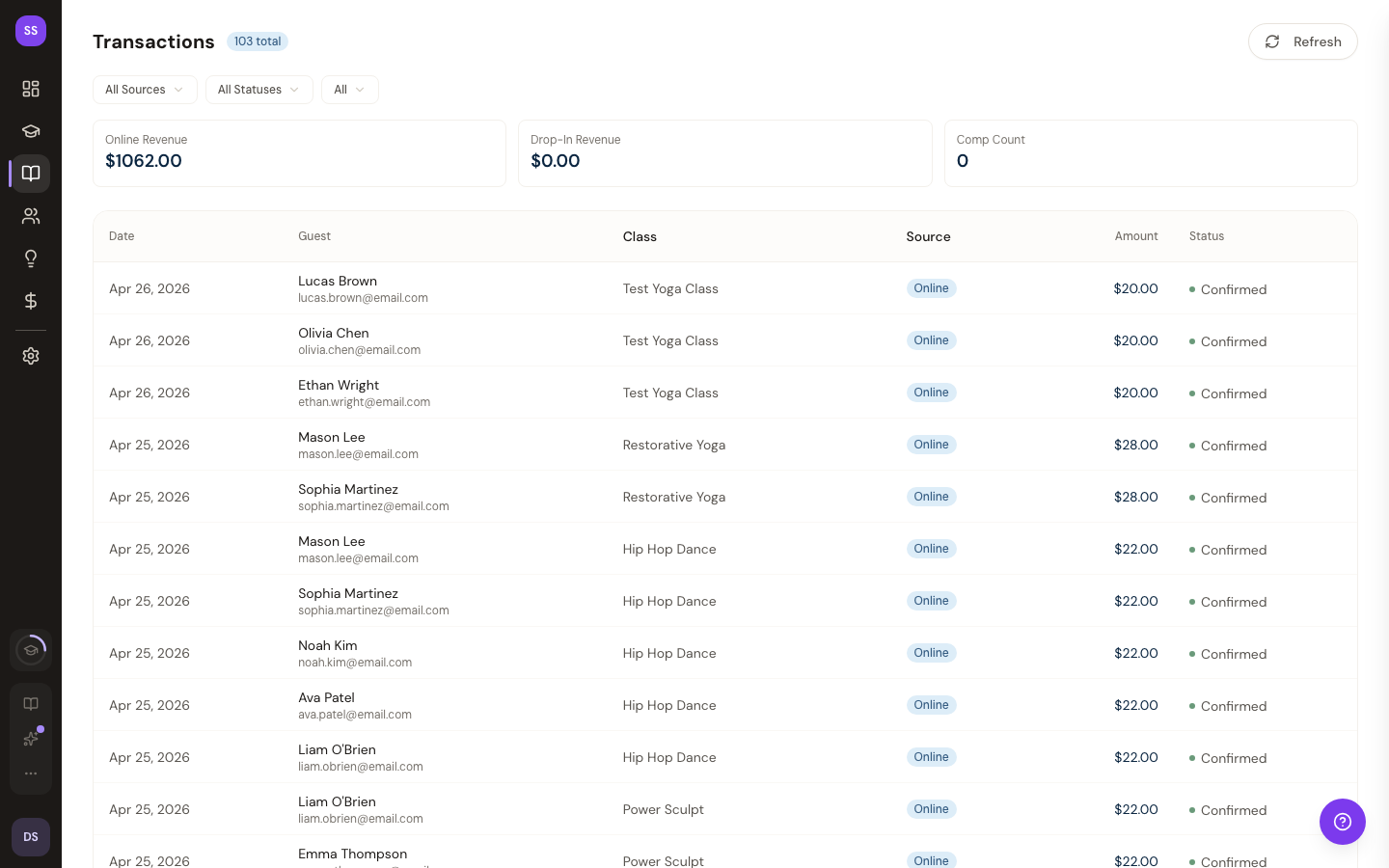
The transactions page gives you a complete view of all booking payments at your studio. You can filter by payment source, status, and date range to find specific transactions or review your revenue.
Go to Dashboard > Transactions to access this page.
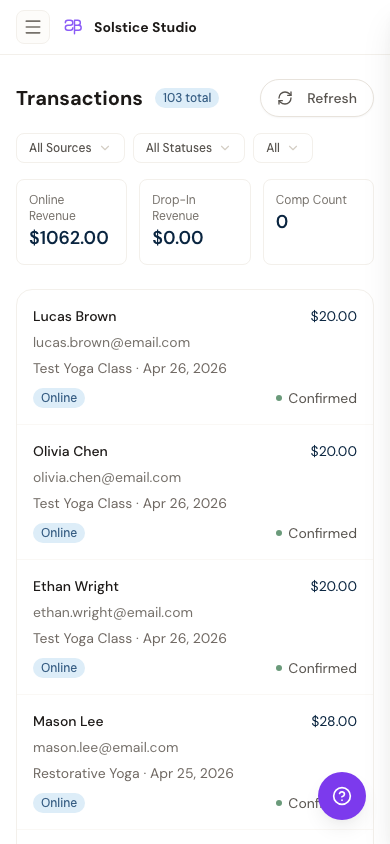
On narrow screens the table becomes a card stack:
What You See
Each transaction shows:
- Date — when the booking was made
- Guest — name and email of the student
- Class — the class that was booked
- Source — how the payment was made (Online, Drop-In, or Comp)
- Amount — the payment amount
- Status — Confirmed or Cancelled
Summary Stats
At the top of the page, four stat cards show aggregated numbers for your current view:
| Stat | Description |
|---|---|
| Total Revenue | Combined online and drop-in payments (confirmed only) |
| Online Revenue | Stripe transactions only |
| Drop-In Revenue | In-person payments only |
| Comp Count | Number of complimentary bookings |
Filtering
Use the filters at the top to narrow down transactions:
- Source — All, Online (Stripe payments), Drop-In (in-person cash or card), Comp (complimentary)
- Status — All, Confirmed, Cancelled
- Date Range — Set a start and end date to filter by class occurrence date
Pagination
Transactions are displayed 50 per page with the most recent first. Use the Previous and Next buttons to browse through older transactions.
Need Help?
Contact support at support@studiobase.org if you have questions about your transactions.
Last updated March 16, 2026