Transactions
The Transactions page gives you a detailed record of every payment made at your studio. Use it to review individual bookings, filter by payment source or status, and track revenue over time.
To access it, go to Dashboard > Transactions.
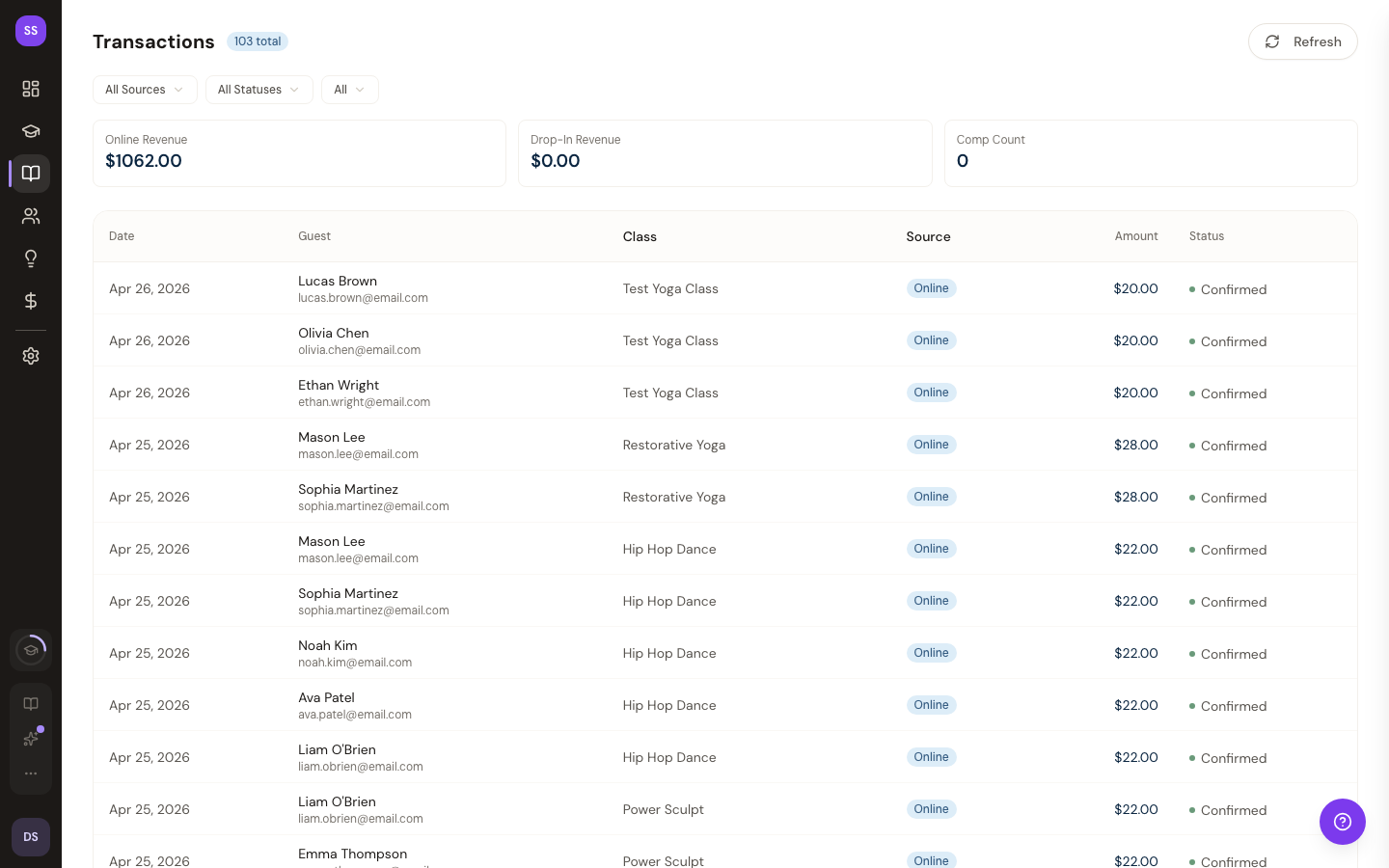
Filtering Transactions
Use the filter controls at the top of the page to narrow down your results.
Date Range
Set a start date and end date to view transactions within a specific time period.
Payment Source
Filter by how the booking was paid:
| Source | Description |
|---|---|
| All | Show all transactions regardless of payment method |
| Online | Standard online bookings paid through Stripe |
| Drop-In | Walk-in bookings recorded at the studio |
| Comp | Complimentary bookings with no charge |
Status
Filter by booking status:
| Status | Description |
|---|---|
| All | Show all statuses |
| Confirmed | Active, completed bookings |
| Cancelled | Bookings that were cancelled |
Revenue Summary
At the top of the page, summary cards show the revenue breakdown for the currently filtered transactions:
- Online Revenue -- Total from standard online bookings
- Drop-In Revenue -- Total from walk-in bookings
- Total Revenue -- Combined total across all payment sources
These totals update automatically as you change your filters.
Transaction Table
Each transaction row displays:
| Column | Details |
|---|---|
| Client | Guest name and email |
| Class | Name of the booked class |
| Date | Date the booking was created |
| Amount | Payment amount |
| Source | Online, Drop-In, or Comp badge |
| Status | Confirmed or Cancelled badge |
Pagination
Transactions are displayed 50 per page. Use the Previous and Next buttons to navigate. The current page and total page count are displayed.
Refreshing Data
Click the refresh button to reload the latest transactions without changing your current filters.
Related
- Revenue Tracking -- How revenue data flows from bookings to your analytics dashboard
- Understanding Payouts -- How and when you receive your earnings
Need Help?
Contact support at support@studiobase.org if you have questions about your transactions.