Signing In
StudioBase offers multiple ways to sign in to your account: email and password, or Google OAuth.
Sign In with Email and Password
1. Navigate to the Login Page
Visit www.studiobase.org/auth/login
2. Enter Your Credentials
Fill in the login form:
- Email Address: The email you used to create your account
- Password: Your account password
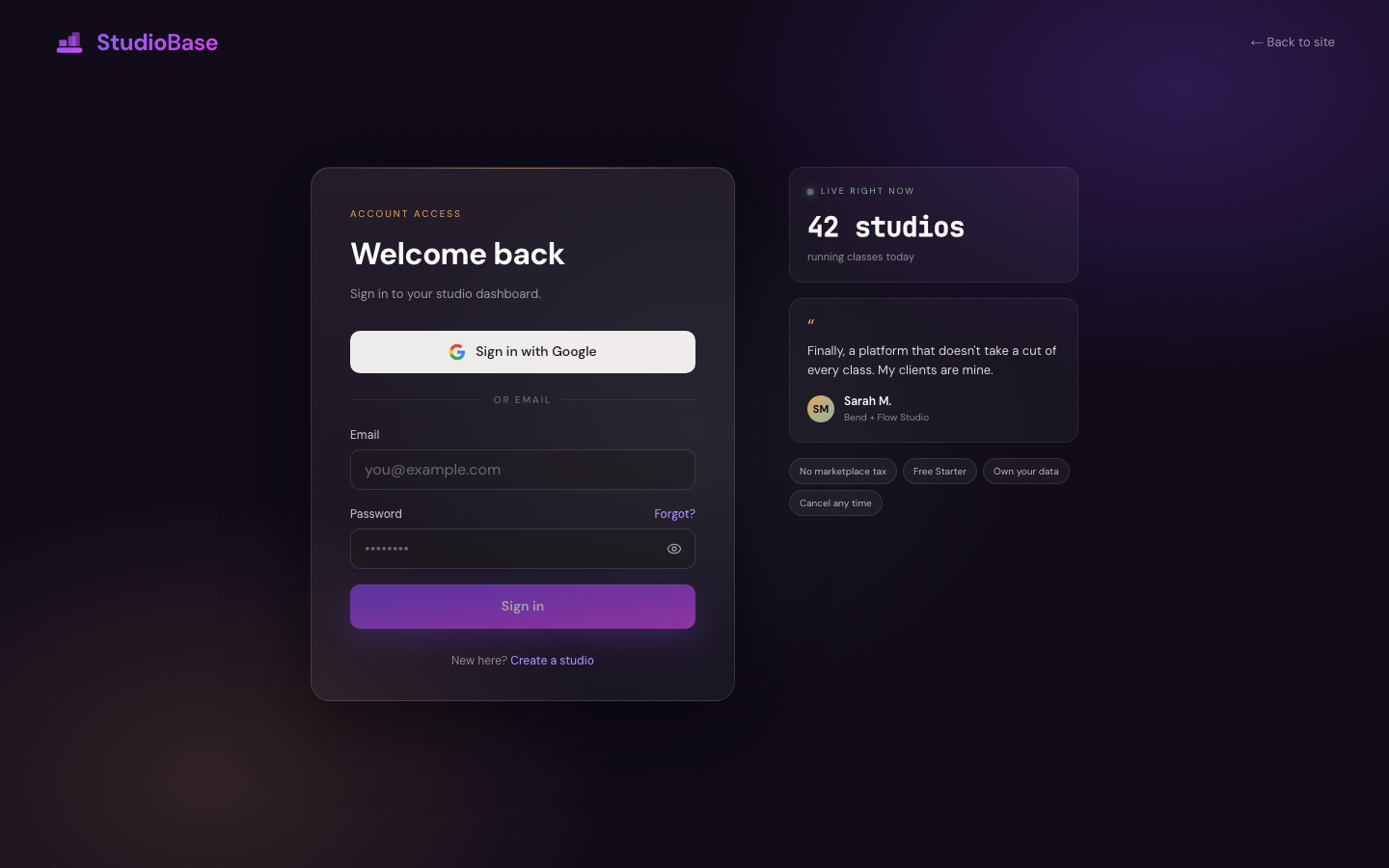
3. Submit the Form
Click Sign In to access your account.
For security, StudioBase uses reCAPTCHA v3 which runs automatically in the background to protect against automated attacks.
Sign In with Google
If you created your account using Google OAuth or linked your Google account:
1. Click "Continue with Google"
On the login page, click the Continue with Google button.
2. Select Your Google Account
Choose the Google account associated with your StudioBase account.
3. Access Your Account
After Google authentication, you'll be signed in and redirected to your dashboard.
Stay Signed In
By default, StudioBase keeps you signed in for 30 days on trusted devices. Your session will remain active until:
- You explicitly sign out
- 30 days pass without activity
- You clear your browser cookies
- You sign in from a different device (with certain security settings)
On shared or public computers, always sign out when finished to protect your account.
Account Security During Sign-In
StudioBase implements multiple security measures:
- Rate Limiting: Progressive temporary lockout applied after each failed login attempt
- reCAPTCHA Protection: Automatic bot detection and prevention
- Secure Sessions: Encrypted session tokens with automatic expiration
- Device Tracking: Monitor active sessions in security settings
Troubleshooting
"Invalid email or password" error
- Double-check your email address for typos
- Ensure caps lock is off when entering your password
- Passwords are case-sensitive
- Try resetting your password if you forgot it
Account locked after failed attempts
- For security, accounts apply an exponential backoff lockout after each failed login attempt (1 min, 2 min, 4 min, 8 min, up to 16 minutes max)
- Wait the specified duration and try again
- If urgent, contact support@studiobase.org
Google OAuth fails or loops
- Ensure pop-ups are enabled in your browser
- Check that third-party cookies are not blocked
- Clear your browser cache and try again
- Try signing in with email/password instead
"Email not verified" error
- Complete email verification first
- Check your inbox for the verification code
- Contact support if you didn't receive the verification email
Session expires immediately
- Check your browser's cookie settings
- Ensure cookies are enabled for studiobase.org
- Try a different browser or disable privacy extensions temporarily
- Check if you're in private/incognito mode
Can't remember which sign-in method you used
- Try email/password first
- If that doesn't work, try "Continue with Google"
- Check your email for past sign-in confirmations
- Contact support@studiobase.org for assistance
Security Best Practices
To keep your account secure:
- Strong passwords: Follow password requirements
- Sign out on shared devices: Always sign out when using public or shared computers
- Monitor active sessions: Check your security settings regularly
- Keep recovery email updated: Ensure you can always access your account
Sign Out
To sign out of your account:
- Click your profile icon in the top-right corner
- Select Sign Out from the dropdown menu
- You'll be redirected to the login page
On shared devices, always sign out to prevent unauthorized access.
Next Steps
After signing in:
- Complete your studio setup in the dashboard
- Review your security settings
- Start managing classes, bookings, and clients
Need Help?
If you're having trouble signing in, contact support@studiobase.org with:
- The email address associated with your account
- Description of the issue
- Screenshots of any error messages